
About lights, probe and reflection system in ENFUSION
Introduction
Lights and reflection are, in games engines, a very important feature but also a point that is difficult to set correctly to get a nice rendering.
Today we gonna learn how to create a light environnement in a Shelter for example.
We gonna also learn how to correctly place global probe for map creation.
1. Probe creation, placement and configuration
What are probe ?
Light probes are small spherical objects that capture lighting information from the environment:
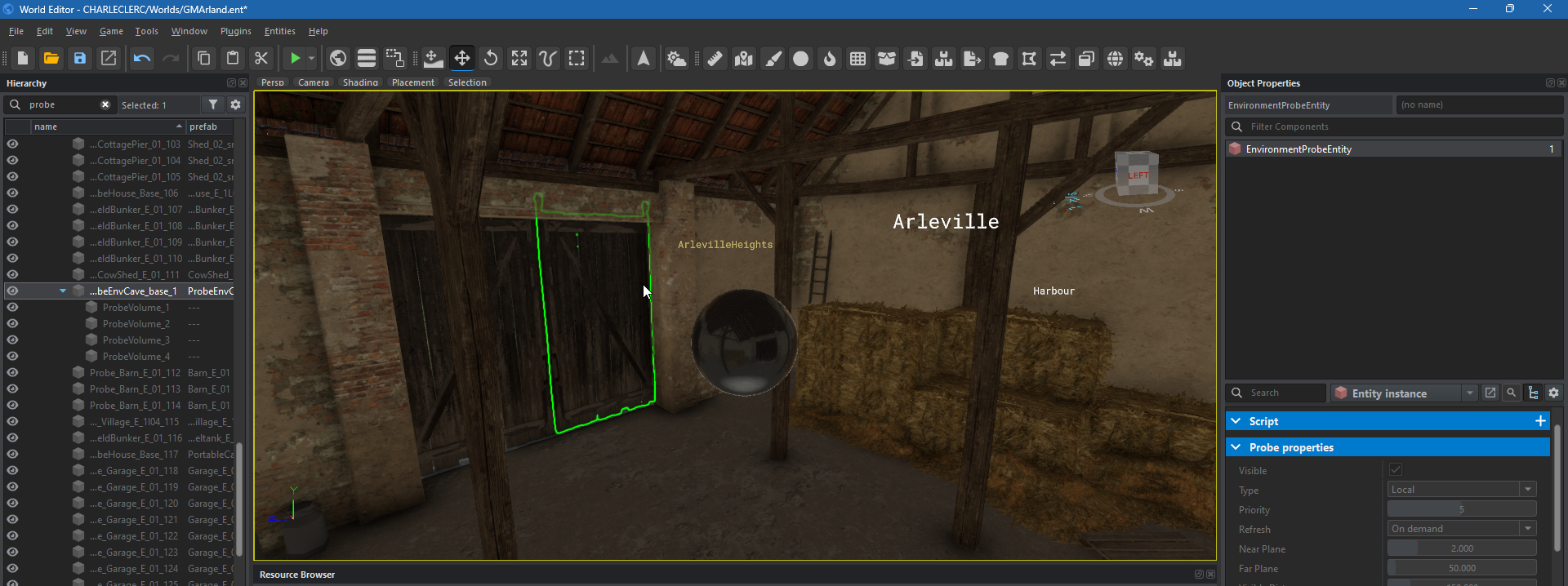
They are strategically placed in the scene, usually at points where lighting changes dramatically or where objects interact with light. The game engine then uses the light probes to interpolate the lighting of objects not directly illuminated by the light sources. In this way, you can create realistic effects such as indirect lighting, reflections and shadows without having to calculate them for every pixel on the screen.
How are the different type of probe ?
There are three different type of probe:
- Global Placed: Used for map creation, modify every reflection on map environnement
- Global Sky: Used for map creation, modify sky reflection on map environnement
- Local: For buildings or area on your map who don't have a good reflection render (cf. @TODO)
For this tutorial, will only explain how to use Local probe for a building, for learn how to use Global Placed & Global sky probes, see @TODO.
How to create Local Probe ?
Search in ressource browser "ProbeHouse_Base.et" and drag & drop it in into your house, in Hierarchy window:
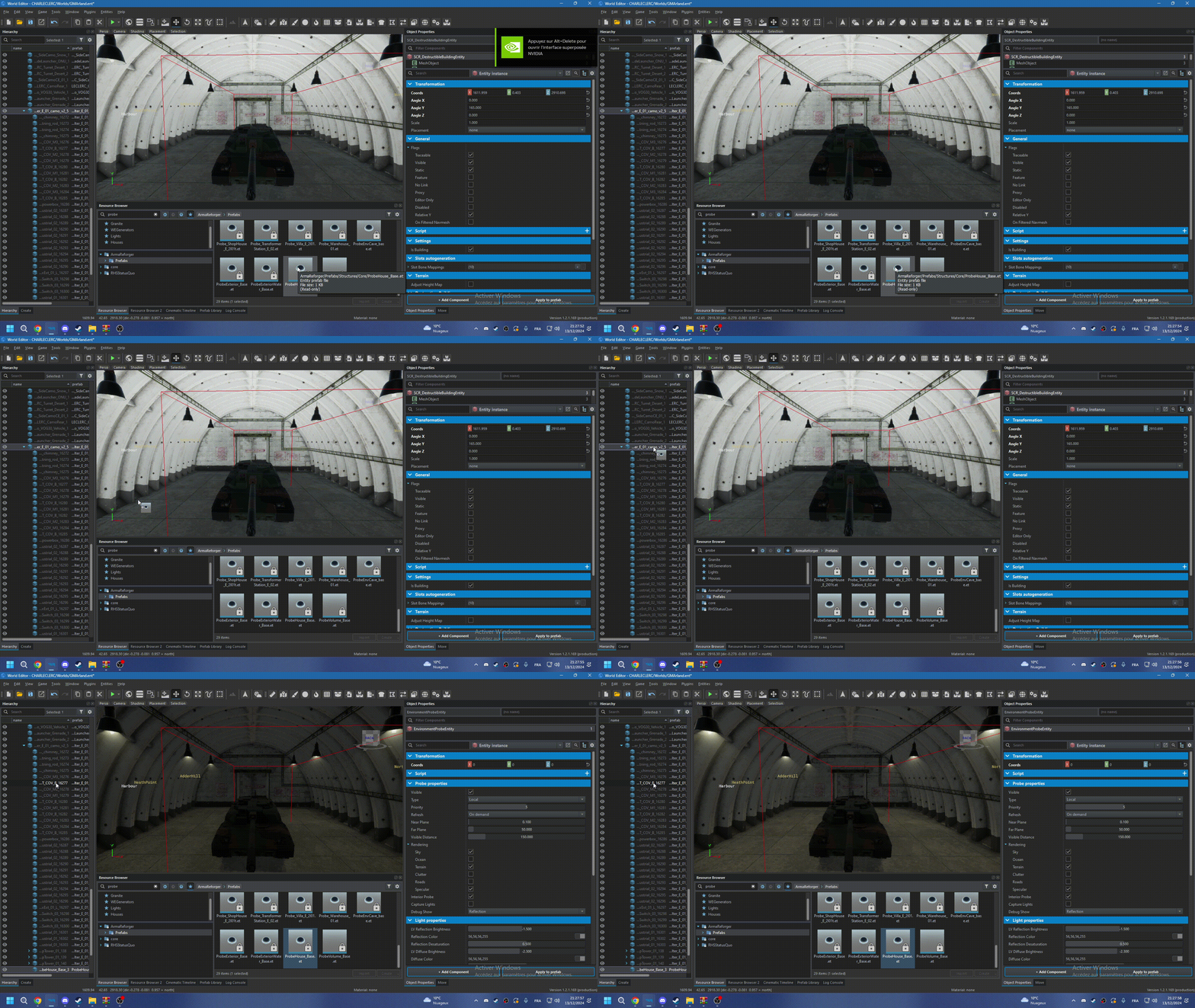
If the probe is not correctly positioned, the reflection in your building will not update!
And finaly, we have Probe properties:
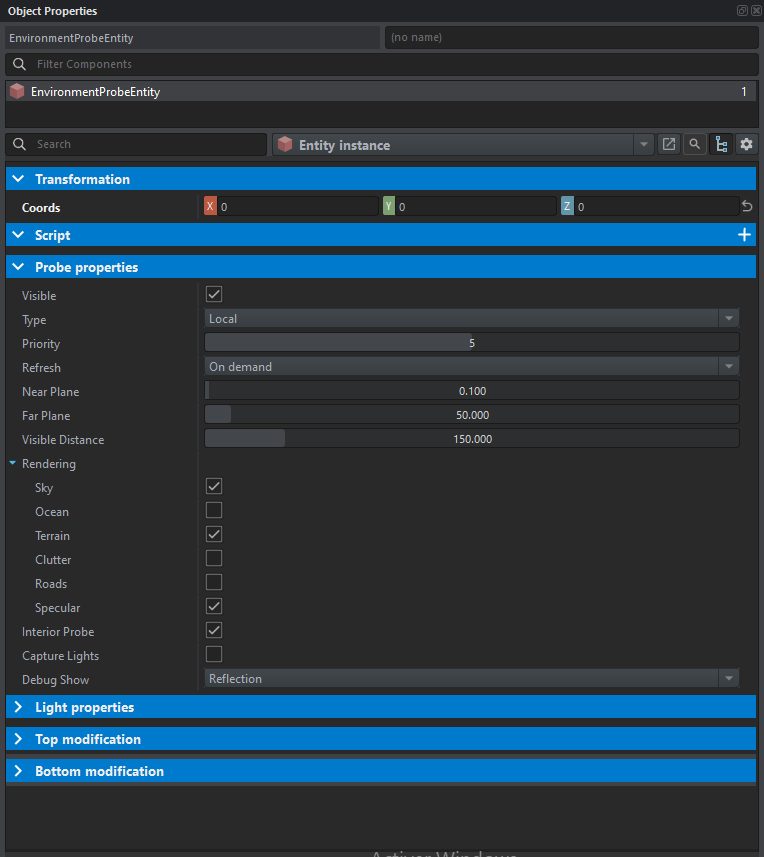
- Visible: On/Off
- Type: Explained above
- Priority: Priority in "render", always 5
- Refresh: When the probe will refresh ? On demand if environnement will update during the game (Always)
- Near plane & Far plane: I'll come back to this a little later in topic.
- Visible Distance: Visible Distance of probe reflection modification (150m is a good value, don't exceed for optimization)
- Rendering: Which relfection will the probe capture?
- Interior Probe: If the probe is located indoors, check yes otherwise no
- Capture Lights: Turn it on if you have lights in your room.
- Debug Show: Debug visualisation on the probe sphere.
As we've seen, a probe will capture and calculate reflections for all light sources and reflections from things checked in Rendering and Capture Lights.
Near Plane & Far plane are the parameters that define the zone from which the probe will retrieve information on reflections. Near Plane is the most precise zone and consumes the most performance, so Near Plane < Far Plane. And Far Plane allows less precise calculation of relfections, but saves performance.
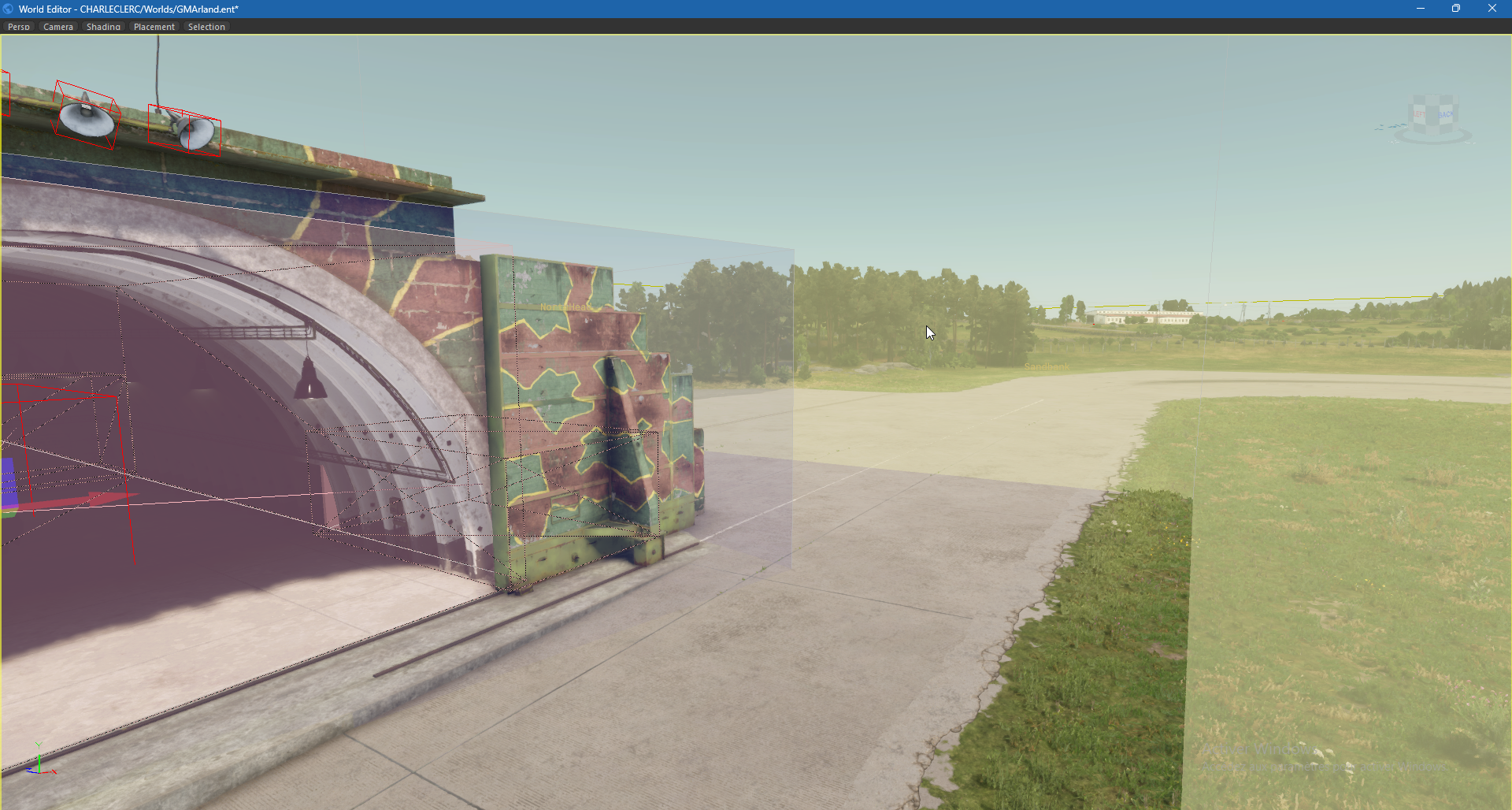
In yellow, there is Far Plane & in blue, there is Near Plane.
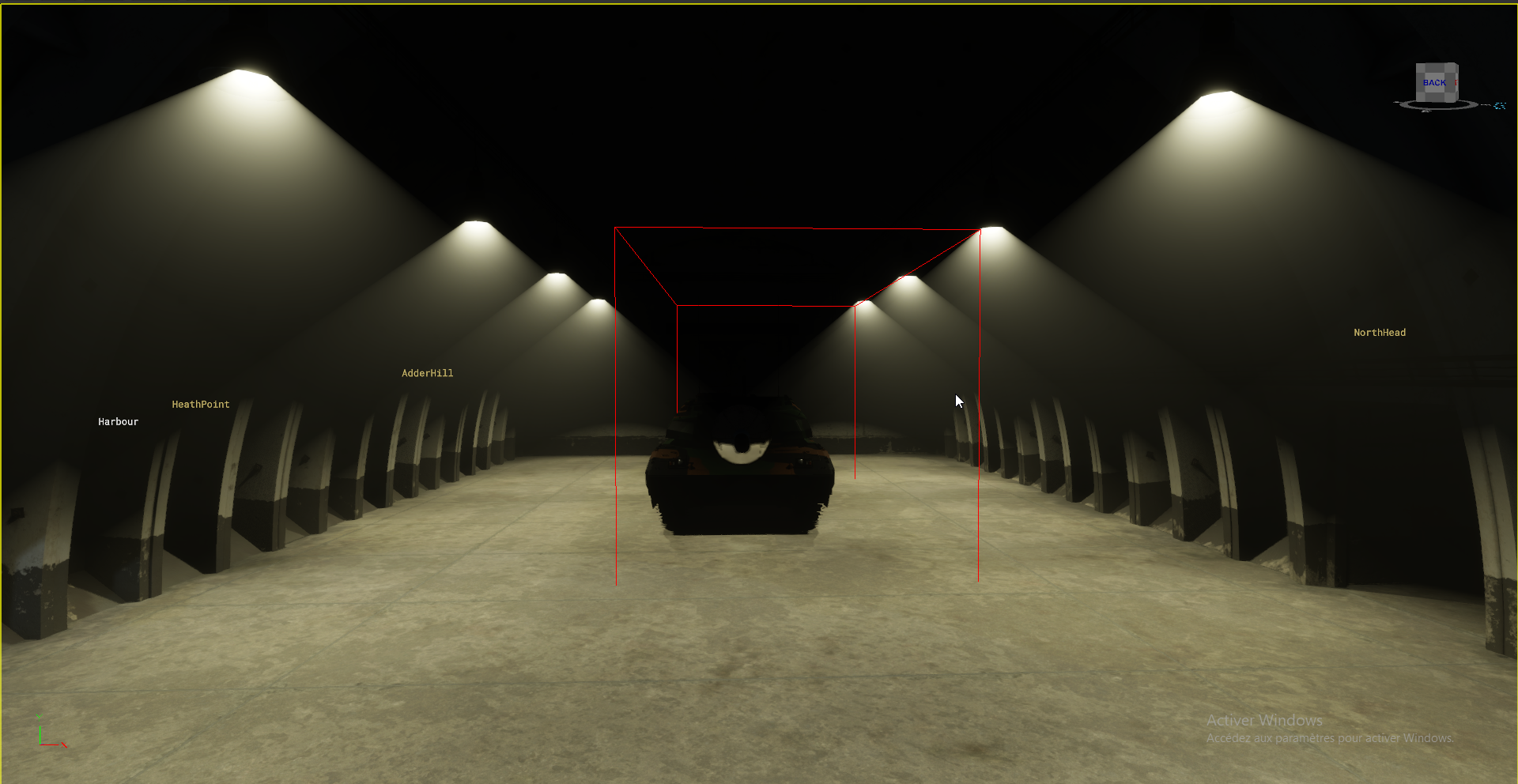
Capture light must be turned on if there are lights in your room, here are a comparation without and with captured light:
Without:
With:
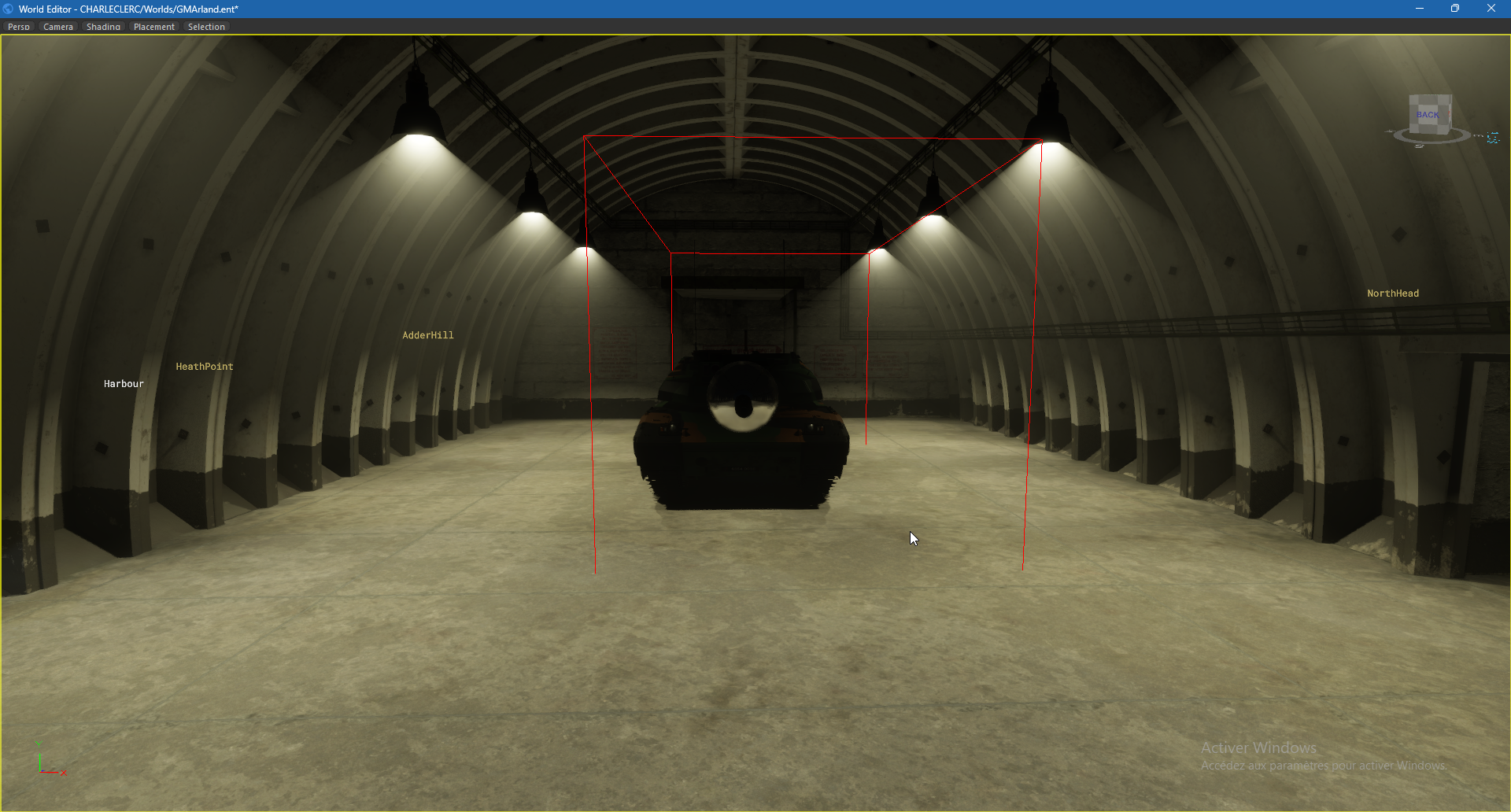
For a good result, you can also play with some parameters in Light Properties
No comments to display
No comments to display