
Simulation Parameters
Learning to configure the simulation, which includes engine parameters, wheel simulation, suspension, and various other settings.
Some sections in this category are not covered due to limited knowledge and are marked (Not covered in this tutorial). For any parameter with this note, leave it at default for now unless otherwise indicated. If someone with expertise wants to share their knowledge, please submit a ticket on Discord.
The component managing the simulation is VehicleWheeledSimulation_SA, which is divided into several areas: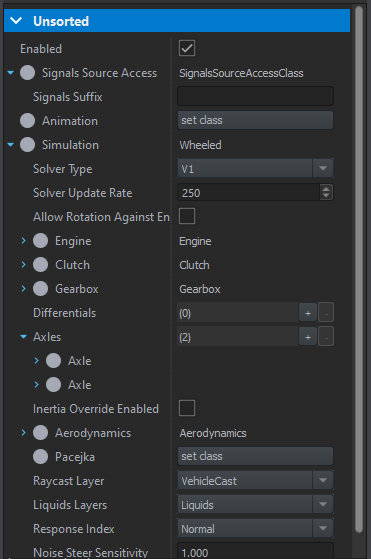
- Animation: We won’t use this for animations.
- Simulation:
- Engine: All engine-related settings.
- Clutch: Clutch parameters (Not covered in this tutorial).
- Gearbox: Transmission parameters (Not covered in this tutorial).
- Axles: This is the wheel system, with one for the front and one for the rear.
- Aerodynamics: Aerodynamics (Not covered in this tutorial).
- Pacejka: Unsure of its purpose, but it’s quite complex, so we’ll use Bohemia Interactive’s default values.
- Others: (Not covered in this tutorial).
Engine:
When setting up engine parameters, it is possible to use real life values. Usually it's not that hard to find information about power & torque of engine with RPM data attached to it. Below is table containing example source data which will be used to configure vehicle in Workbench
Engine | Power | Torque |
I4 16V | 86 kW at 5,800 rpm | 155 N⋅m at 4,400 rpm |
Using that data, it is possible to fill following data in Engine section of VehicleWheeledComponent
- Max Power - 85 kW
- Max Torque - 155 N*m
- Rpm Max Power - 5800 rpm
- Rpm Max Torque - 4400 rpm
Below is visualization of data https://www.desmos.com/calculator/j63rwoyvnh

Inertia parameter controls engine moment of inertia. In layman's term, it affects how fast engine gains or lose rpm. High inertia results in slower gain of rpm's but it also means that less rpm will be lost during i.e. changing of gears or when releasing thrust. Table below can be used as sort of guidance but it is still recommended to experiment with that value and tweak it till reaches desired state

Steepness parameter controls how fast engine can reach max torque. This parameter can be used to i.e. reduce the acceleration of the vehicle or to fine tune torque/rpm graph. Effect of that parameter can be observed below

Rest of the RPM parameters, like Rpm Idle, Min Clutch, Redline & Max, can be also directly copied from source data if its available. In this example, following data was used
- Rpm Idle - 850 rpm
- Rpm Min - 600 rpm
- Rpm Clutch - 1500 rpm
- Rpm Redline - 6500 rpm
- Rpm Max - 7000 rpm
Last but not least, there is Output parameter, which controls where power produced by the engine is transferred. In this example Clutch is used as a Output.
Gearbox & Clutch parameters

In Clutch section of the VehicleWheeledSimulation component there are two parameters available. Clutch Output should be kept to Gearbox & Max Clutch Torque - parameter controlling maximum torque that clutch can provide - should be tweaked. 1.6 * Max Torque can be a good starting point.
In Gearbox section gear that can be filled in. In this example, following data was used as source
| Final drive | 68 : 16 = 4.250 |
|---|---|
| 1st gear | 38 : 11 = 3.455 |
| 2nd gear | 35 : 18 = 1.944 |
| 3rd gear | 37 : 27 = 1.370 |
| 4th gear | 32 : 31 = 1.032 |
| 5th gear | 34 : 40 = 0.850 |
| Reverse gear | 38 : 12 = 3.167 |
Forward parameter contains array of forward gears. New gears can be simply added by clicking on plus sign + on the right side of the parameter. Reverse parameter is used for reverse gear. Final drive is defined later in differential which is defined in one of the Axles. Depending on the configuration of the vehicle, it is possible to do various types of drive trains. In this example car is using simple forward wheels drive.
Suspension parameters
One of the most important part of the vehicle configuration is setting Axles & their Suspension values. First, it is necessary to add as many Axles as vehicle has. This can be done by clicking on plus + sign on the right side of the Axles property.

Wheels parameters
Differential and Torque Share
Each vehicle, whether it be FWD, RWD, AWD, or 4WD will have at least one differential on the drive axle. For each drive axle, choose the appropriate Type (Closed, Open, or Limited Slip Differential) and the Ratio of the differential's gear reduction.
- Open differentials will split torque evenly when both tires will have equal traction, but will send all torque to a tire which loses traction. This is not ideal off road, but is the most common consumer car differential.
- Locked differentials will ensure both wheels on an axle always rotate at the same speed. This provides great grip but is not ideal for turns, where wheels are meant to rotate at different speeds.
- LSDs are not locked but will increase grip between the wheels if one wheel loses traction. This provides a compromise between open and locked differentials. You can set the LSD's clutch grip with the Strength parameter.
Once you have set the axle's differential type, set Output0 and Output1 to the left and right wheel. If you are making a vehicle with more than 1 drive axle, you will also need to deliver power to each axle with a new differential under Simulation > Differentials. Set the outputs of that differential to each axle's diff, and set the Torque share value of each axle to 1/N where N is the number of axles. If you do not change the torque share from 0 for each axle, it will not be used as a drive axle.
Wheel
Here you can set the Radius in meters, Mass in kg, and Brake torque in N-m.
Tyre
Here you can set the friction coefficient multipliers. Longitudinal refers to the tangent direction of the wheel (grip when accelerating) and lateral refers to the perpendicular to the car (grip when turning).
Wheel Positions (to complete)
Aerodynamics
Aerodynamics affects maximum speed and acceleration of the vehicle. Furthermore, aerodynamics drag is especially noticeable at higher speeds, since drag increases with square of speed.
Reference Area & Drag Coefficient values can be obtained by using values of similar vehicles, which have already those values measured. Drag Area (Reference Area) & Typical drag coefficients (Drag Coefficient) sections of Auto mobile drag coefficient wiki page can be used as reference. This page contains data for quite wide array of vehicles and in most cases it is possible to pick data for something similar in size & shape. In this example, Reference Area was set to 0.62 & Drag Coefficient to 0.31.
Pacejka (to complete)
Debugging
Name & location | Description | ||
|---|---|---|---|
Vehicles | Show Entry points | ||
Enable debugger trace | |||
Show stats | |||
Show vehicle debug | Need to be activate in order to see any other parameter | ||
Player vehicle only | |||
Show CoM | Toggles Center of Mass debug | ||
Show inertia | |||
Show forces | |||
Show engine | |||
Show raycast | |||
Show suspension | show the travel between up and down position useful to see how their react | ||
Show swaybar | |||
Show wheels | Activate the diameter of the wheel (super useful for configure the radius of them) | ||
Show bones | Activate the position of the bone | ||
Reset vehicle | |||