
Creating Prefab's
WARNING: Not Updated, TODOIntroduction
Learning to create the car and wheel prefabs and link the windows, wheels, and main model.
WARNING: To modify prefabs, open the Resource Browser, locate your prefab, double-click on it, and click Edit Prefab. From this point, you can modify your vehicle prefab or anything else (press Ctrl + S to save).
To create a prefab, follow this tutorial.
Step 1 - Creating the Prefabs:
Create the Wheel PrefabCreate the Main Model Prefab
Creating the Wheel Prefab:
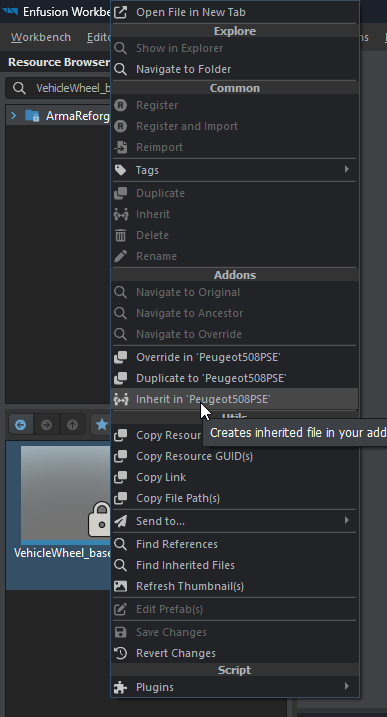
In theResource Browser, search for "VehicleWheel_base," right-click, and selectInherit in '...'. Rename it to "yourvehicle_Wheel."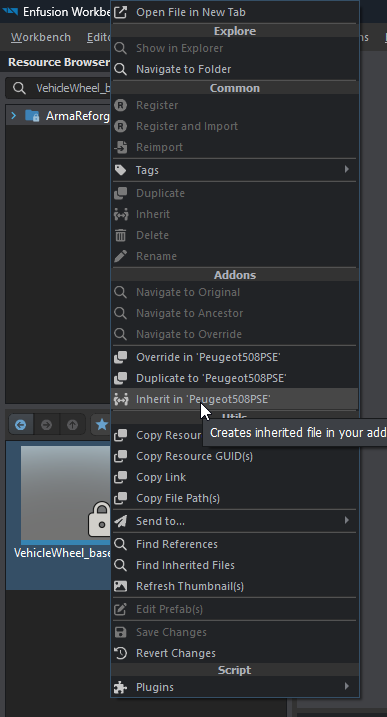
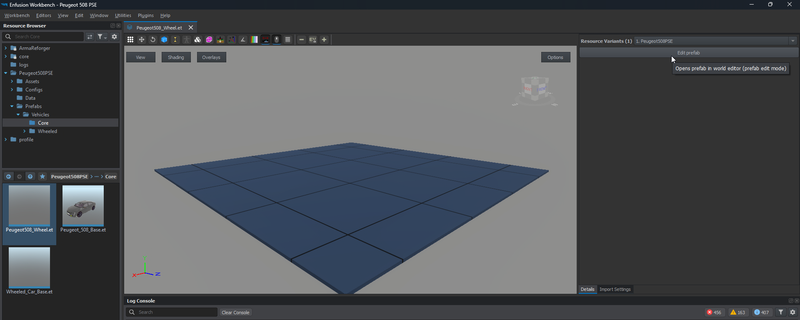
Go to your addon, navigate toPrefab/core, open the file you just created, and on the right, click onEdit Prefab.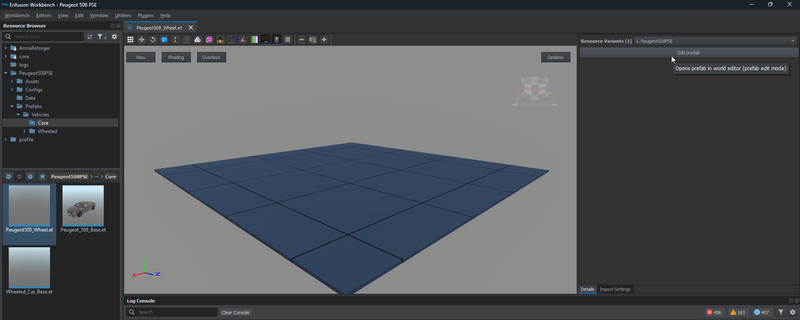
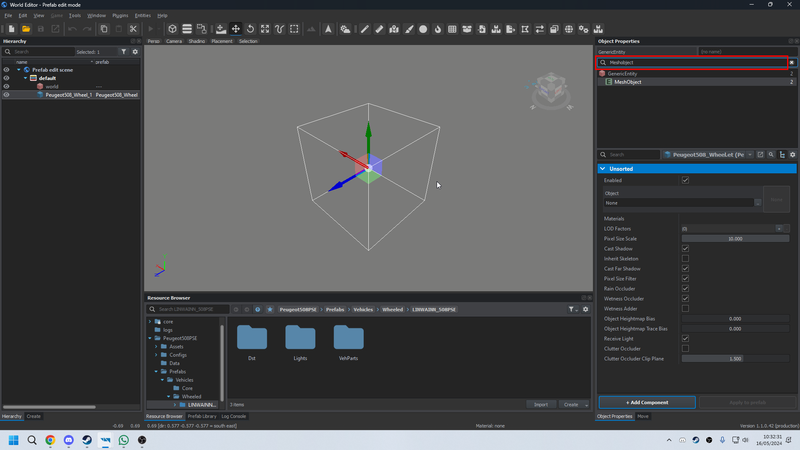
Once the Prefab Editor is open, search for "MeshObject" in the right-hand search bar.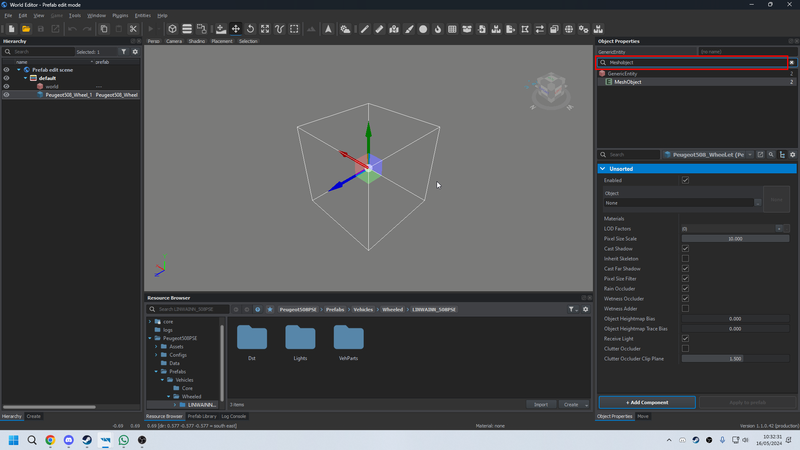
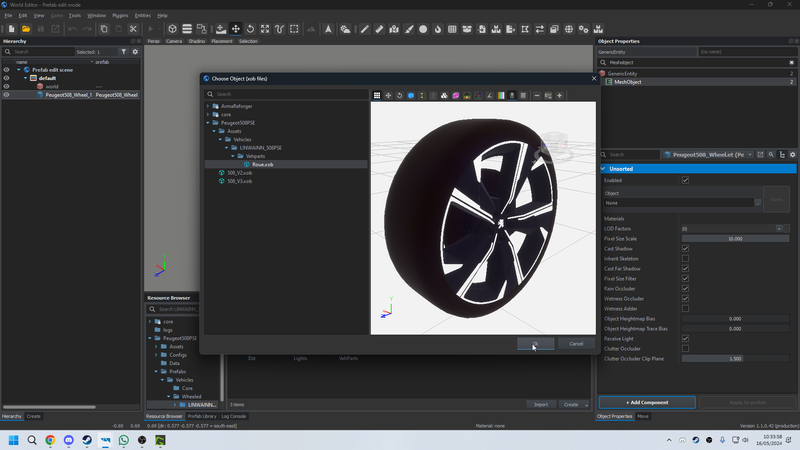
Under theObjectoption, locate the.xobfile for your wheel and clickOKto confirm.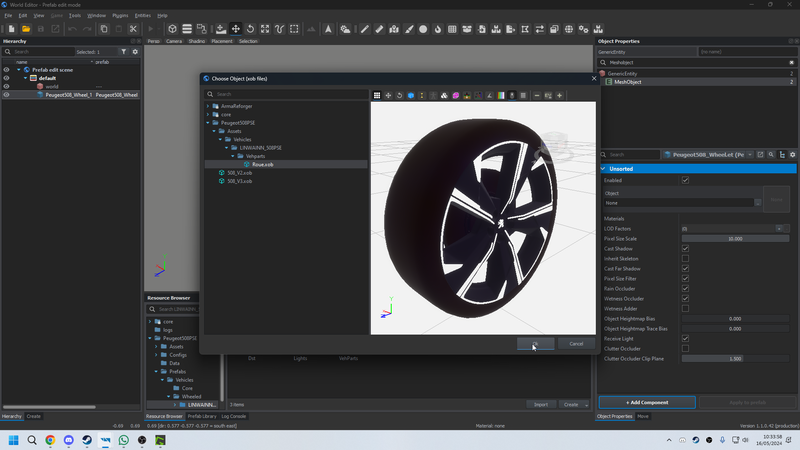
In theResource Browser, go to your addon, thenprefabs/vehicle/wheeled/youraddonname/Vehparts. Drag the prefab from the left column of the Resource Browser and name the wheel as mentioned above.PressCtrl + S, close the World Editor, and proceed.
Creating the Main Model:
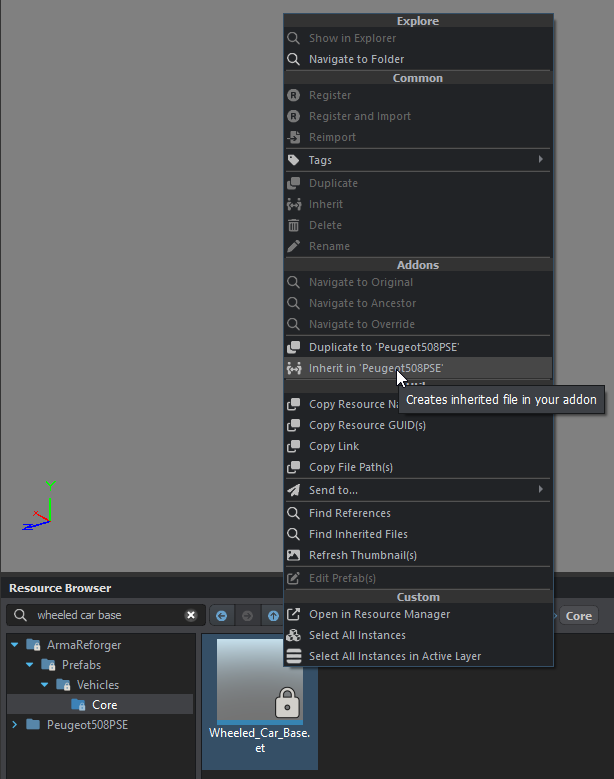
In the search bar, look for "wheeled car base," (take the base accordding to the vehiucle you are palnned to do) right-click, and selectInherit in '...'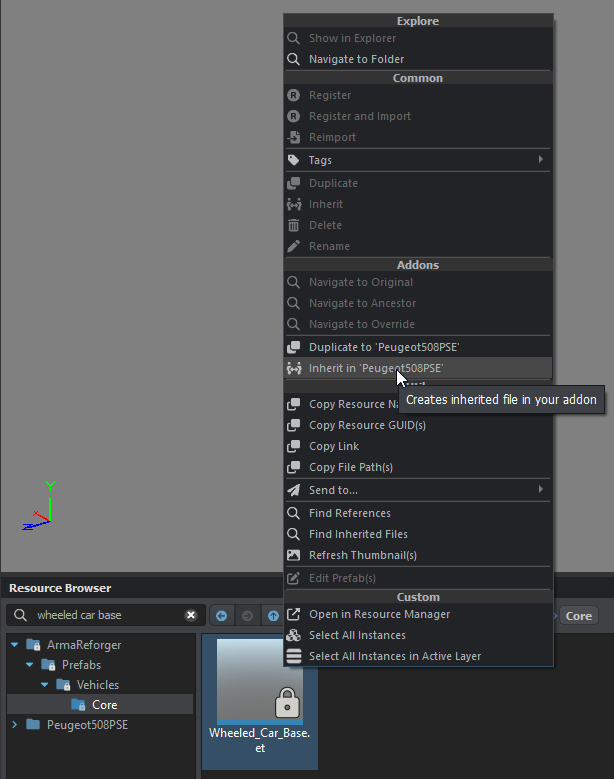
Rename it with the name of your vehicle, without spaces.Clear the current search, select what you just created, open it, and clickEdit Prefab.Search for "MeshObject" in the right search bar, and in theObjectfield, select the.xobfile for your main model.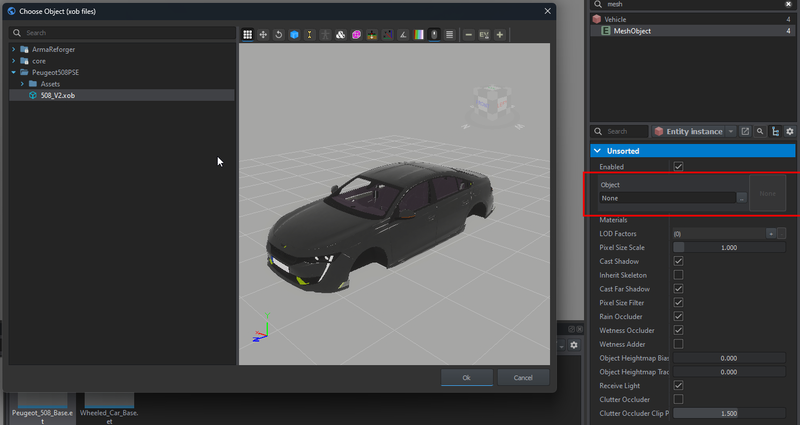
ClickOK.
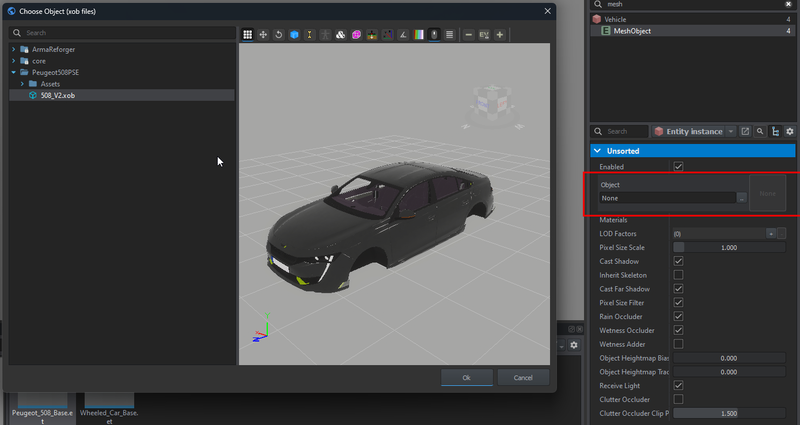
If everything has gone correctly, your 3D model should appear. Save with Ctrl + S and move to the next step.
Step 2 - Attaching the Wheels to the Main 3D Model:
In the right-hand search bar, search for "SlotManager."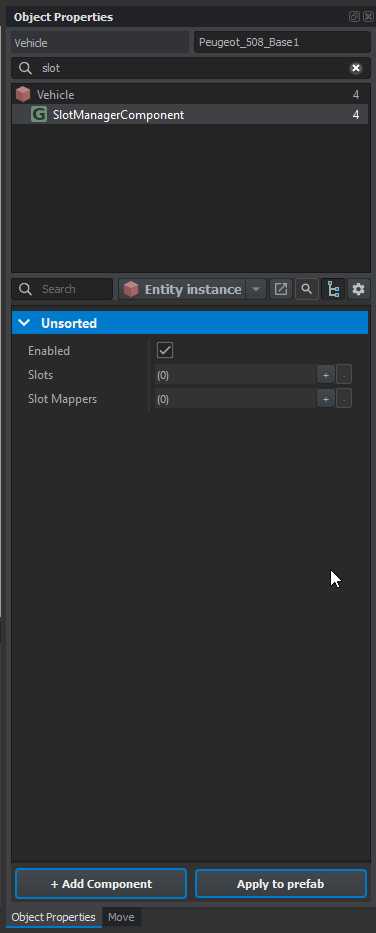
In theSlotManagercomponent, this is where you will attach your wheels and windows.
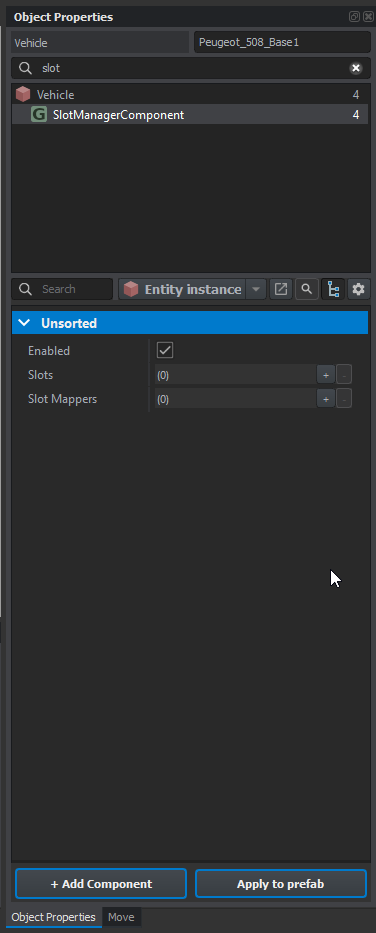
For the Wheels:
Click the plus sign and select "SCR_WheelSlotInfo."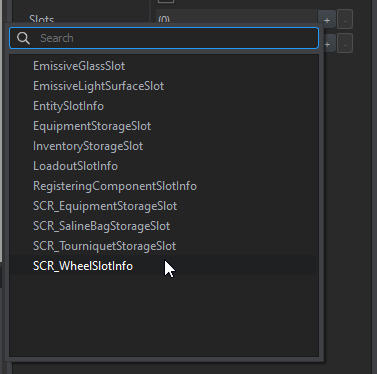
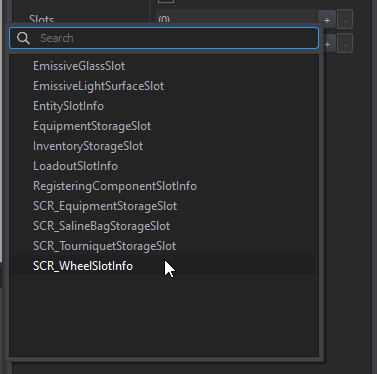
Follow a naming pattern for the wheels:
"Wheel_L01"Wheel for the wheel.L for left (Left = L, Right = R).01 for the front left wheel (top = 01, bottom = 02).
Important Vocabulary:
Pivot ID:Corresponds to the bone name, setting the wheel’s default position.Offset:Allows manual adjustment of the wheel’s position.Angle:Modifies the wheel’s angle, useful for positioning wheels on the opposite side with a 180° rotation.Wheel Index:A code used to identify each wheel.
Starting with the front left wheel, Wheel_L01:
After creating the slot, activate theDisable Physics InteractionandRegister Damagesettings. In the prefab box, select the wheel prefab.(to be confirmed)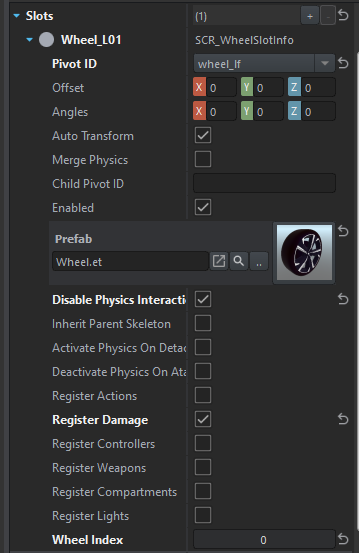
For the right side, apply a Z-axis rotation of 180° to position it correctly. This will look like: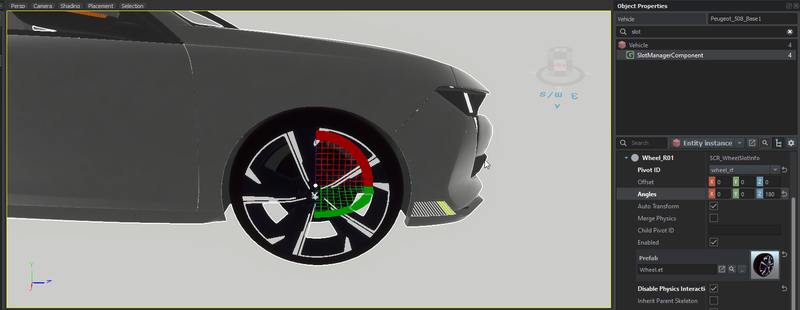
Wheel Index Codes:
Front Left: 0Front Right: 1Rear Left: 2Rear Right: 3
Once your wheels are in place, save, and move to the next step.fd