# Change default loadout
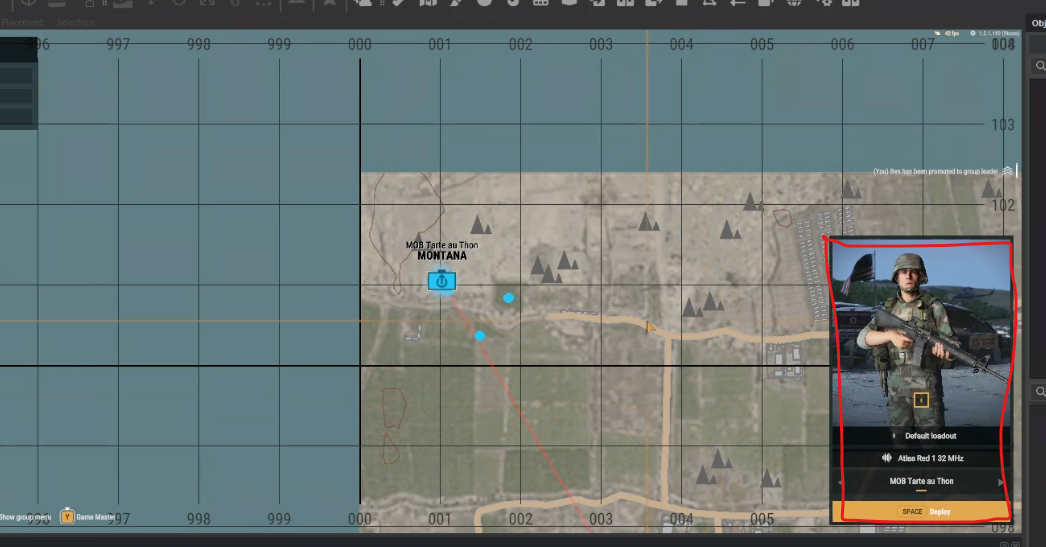
When spawning, you can choose the gear you spawn with in the bottom right of the map.
[](https://wiki.nabla.sh/uploads/images/gallery/2025-02/pUzimage.png)
The gear that new players spawn with is configurable for your scenario.
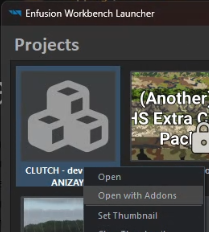
1\. Open the scenario you are using in your Workbench (make sure to open it with the mod you will be using. For example, RHS if you want to customize the character with RHS outfits, for instance).
[](https://wiki.nabla.sh/uploads/images/gallery/2025-02/tZsimage.png)
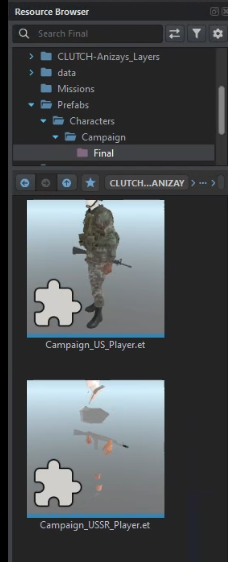
2. You will override theses prefabs:
[https://enfusionengine.com/api/redirect?to=enfusion://ResourceManager/$ArmaReforger:Prefabs/Characters/Campaign/Final/Campaign\_US\_Player.et](https://enfusionengine.com/api/redirect?to=enfusion://ResourceManager/$ArmaReforger:Prefabs/Characters/Campaign/Final/Campaign_US_Player.et)
[https://enfusionengine.com/api/redirect?to=enfusion://ResourceManager/$ArmaReforger:Prefabs/Characters/Campaign/Final/Campaign\_USSR\_Player.et](https://enfusionengine.com/api/redirect?to=enfusion://ResourceManager/$ArmaReforger:Prefabs/Characters/Campaign/Final/Campaign_USSR_Player.et)
3. Once the overrides are created, you will get prefabs in your mod in the following format:
[](https://wiki.nabla.sh/uploads/images/gallery/2025-02/nYnimage.png)
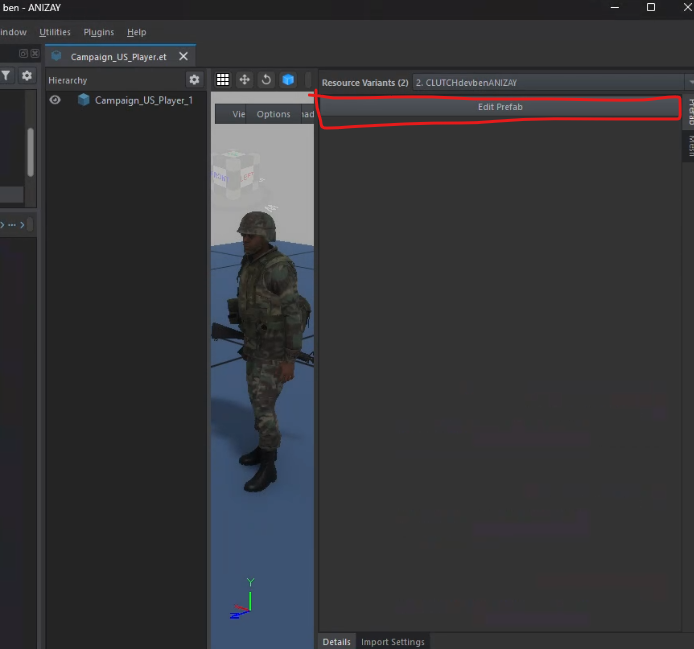
4. Ouvrer ces prefab dans l'edtiteur en double cliquant dessus et en faisant Edit prefab
[](https://wiki.nabla.sh/uploads/images/gallery/2025-02/bIHimage.png)
5. If the ****Edit Prefab**** option is grayed out, it means you haven't opened the prefab you just overrode.
6. Go to the ****BaseLoadoutManagerComponent**** to edit your character's outfit.
If, during testing, an element doesn’t work correctly (e.g., the t-shirt never spawns properly), disable the slot that isn’t functioning and use another slot, such as the glove slot, for the t-shirt instead.
7. Edit the ****CharacterWeaponSlotComponent****
You can change the default weapons your character spawns with. Each component corresponds to a specific slot.
Edit the ****SCR\_CInventoryStorageManagerComponent****
To modify the default items a player spawns with, adjust the slots by adding or modifying the existing prefabs.
****WARNING:**** Check the console to ensure that items are compatible with the slot where you place them.Example: In ****RHS****, if the pouches on the chest have three magazine slots, you can only place three magazines in that slot. Otherwise, you will get an error in the console.
Save everything and test directly in-game.