# Scenario Creation Process

Various help regarding the scenario creation process

# Conflict

various help around the conflict scenario

# Change default loadout

When spawning, you can choose the gear you spawn with in the bottom right of the map.

  
[![image.png](https://wiki.nabla.sh/uploads/images/gallery/2025-02/scaled-1680-/pUzimage.png)](https://wiki.nabla.sh/uploads/images/gallery/2025-02/pUzimage.png)

The gear that new players spawn with is configurable for your scenario.

  
1\. Open the scenario you are using in your Workbench (make sure to open it with the mod you will be using. For example, RHS if you want to customize the character with RHS outfits, for instance).  
[![image.png](https://wiki.nabla.sh/uploads/images/gallery/2025-02/scaled-1680-/tZsimage.png)](https://wiki.nabla.sh/uploads/images/gallery/2025-02/tZsimage.png)

2. You will override theses prefabs:

[https://enfusionengine.com/api/redirect?to=enfusion://ResourceManager/$ArmaReforger:Prefabs/Characters/Campaign/Final/Campaign\_US\_Player.et](https://enfusionengine.com/api/redirect?to=enfusion://ResourceManager/$ArmaReforger:Prefabs/Characters/Campaign/Final/Campaign_US_Player.et)

[https://enfusionengine.com/api/redirect?to=enfusion://ResourceManager/$ArmaReforger:Prefabs/Characters/Campaign/Final/Campaign\_USSR\_Player.et](https://enfusionengine.com/api/redirect?to=enfusion://ResourceManager/$ArmaReforger:Prefabs/Characters/Campaign/Final/Campaign_USSR_Player.et)

3. Once the overrides are created, you will get prefabs in your mod in the following format:

[![image.png](https://wiki.nabla.sh/uploads/images/gallery/2025-02/scaled-1680-/nYnimage.png)](https://wiki.nabla.sh/uploads/images/gallery/2025-02/nYnimage.png)

<span style="color: rgb(0, 0, 0);">4. Ouvrer ces prefab dans l'edtiteur en double cliquant dessus et en faisant Edit prefab</span>

[![image.png](https://wiki.nabla.sh/uploads/images/gallery/2025-02/scaled-1680-/bIHimage.png)](https://wiki.nabla.sh/uploads/images/gallery/2025-02/bIHimage.png)

5. <span style="white-space: pre-wrap;">If the </span>****Edit Prefab****<span style="white-space: pre-wrap;"> option is grayed out, it means you haven't opened the prefab you just overrode.</span>
6. <span style="white-space: pre-wrap;">Go to the </span>****BaseLoadoutManagerComponent****<span style="white-space: pre-wrap;"> to edit your character's outfit.</span>  
    If, during testing, an element doesn’t work correctly (e.g., the t-shirt never spawns properly), disable the slot that isn’t functioning and use another slot, such as the glove slot, for the t-shirt instead.
7. <span style="white-space: pre-wrap;">Edit the </span>****CharacterWeaponSlotComponent****  
    You can change the default weapons your character spawns with. Each component corresponds to a specific slot.

<span style="white-space: pre-wrap;">Edit the </span>****SCR\_CInventoryStorageManagerComponent****  
To modify the default items a player spawns with, adjust the slots by adding or modifying the existing prefabs.  
  
****WARNING:****<span style="color: rgb(230, 126, 35); white-space: pre-wrap;"> Check the console to ensure that items are compatible with the slot where you place them.Example: In </span>****RHS****<span style="color: rgb(230, 126, 35);">, if the pouches on the chest have three magazine slots, you can only place three magazines in that slot. Otherwise, you will get an error in the console</span>.

Save everything and test directly in-game.

# Change price of a item in bulding construction

<span style="white-space: pre-wrap;">1. You need to override the EditorModeBuilding prefab (in prefab -&gt; editor -&gt; modes). </span>[https://enfusionengine.com/api/redirect?to=enfusion://ResourceManager/$ArmaReforger:Prefabs/Editor/Modes/EditorModeBuilding.et](https://enfusionengine.com/api/redirect?to=enfusion://ResourceManager/$ArmaReforger:Prefabs/Editor/Modes/EditorModeBuilding.et)<span style="white-space: pre-wrap;"></span>

<span style="white-space: pre-wrap;">2.Find the component </span>****SCR\_CampaignBuildingPlacingEditorComponent****.[![image.png](https://wiki.nabla.sh/uploads/images/gallery/2025-03/scaled-1680-/H9Himage.png)](https://wiki.nabla.sh/uploads/images/gallery/2025-03/H9Himage.png)

<span style="white-space: pre-wrap;">3. Go to the </span>****Registries****<span style="white-space: pre-wrap;"> line.</span>  
[![image.png](https://wiki.nabla.sh/uploads/images/gallery/2025-03/scaled-1680-/02jimage.png)](https://wiki.nabla.sh/uploads/images/gallery/2025-03/02jimage.png)

<span style="white-space: pre-wrap;">4. Take the first empty line and expand </span>****Prefab****.  
[![image.png](https://wiki.nabla.sh/uploads/images/gallery/2025-03/scaled-1680-/G0uimage.png)](https://wiki.nabla.sh/uploads/images/gallery/2025-03/G0uimage.png)

Here, you will find the list of all placeable compositions in construction mode.

  
5.Press the magnifying glass to locate the composition you want to modify.

[![image.png](https://wiki.nabla.sh/uploads/images/gallery/2025-03/scaled-1680-/tWjimage.png)](https://wiki.nabla.sh/uploads/images/gallery/2025-03/tWjimage.png)

6\. dans notre exemple on va prendre la dent de dragon, vous allez alors override la composition en faisant clique droit sur l'objet et overire

[![image.png](https://wiki.nabla.sh/uploads/images/gallery/2025-03/scaled-1680-/lI5image.png)](https://wiki.nabla.sh/uploads/images/gallery/2025-03/lI5image.png)

<span style="white-space: pre-wrap;">7. Edit the </span>****Prefab****.

[![image.png](https://wiki.nabla.sh/uploads/images/gallery/2025-03/scaled-1680-/lRhimage.png)](https://wiki.nabla.sh/uploads/images/gallery/2025-03/lRhimage.png)

<span style="white-space: pre-wrap;">8. Go to the </span>****SCR\_EditableEntityComponent****<span style="white-space: pre-wrap;"> component.</span>

[![image.png](https://wiki.nabla.sh/uploads/images/gallery/2025-03/scaled-1680-/qljimage.png)](https://wiki.nabla.sh/uploads/images/gallery/2025-03/qljimage.png)

# Modify the zone of detection of the supply point (marker green supply on map)

<span style="white-space: pre-wrap;">the goal is to see the green suply icon on the map </span>  
  
In reforger there is a parameter to set which distance from a point a supply could be seen on map  
  
1.Go to SCR\_GameModeCampaign

2.Go to the Campaign tab

[![image.png](https://wiki.nabla.sh/uploads/images/gallery/2025-03/scaled-1680-/NcKimage.png)](https://wiki.nabla.sh/uploads/images/gallery/2025-03/NcKimage.png)  
  
3\. Modify the line Supply Depot Icon Thershold

[![image.png](https://wiki.nabla.sh/uploads/images/gallery/2025-03/scaled-1680-/gOrimage.png)](https://wiki.nabla.sh/uploads/images/gallery/2025-03/gOrimage.png)

# Everon Life (install + setup)

# Create a selling point

The purpose of this tutorial is to create a point of sale that allows exchanging products for money.

To achieve this, we will use components that will be added to the prefab:

[![image.png](https://wiki.nabla.sh/uploads/images/gallery/2024-12/scaled-1680-/image.png)](https://wiki.nabla.sh/uploads/images/gallery/2024-12/image.png)

We are using the base setuop that the everon team did and we decompose it to analyse it's function:

<p class="callout warning">Putting the componenet on a npc does not seem to be working therefore you need to put an prefab (i recommand putting for exemple a prefab in link with the farm)</p>

##### <span style="white-space: pre-wrap;">- </span>****EL\_restrictedInventoryStorageCompinent****<span style="white-space: pre-wrap;">: </span>

this component seem to be the one who are filtering the item you can exchange

[![image.png](https://wiki.nabla.sh/uploads/images/gallery/2024-12/scaled-1680-/CyGimage.png)](https://wiki.nabla.sh/uploads/images/gallery/2024-12/CyGimage.png)
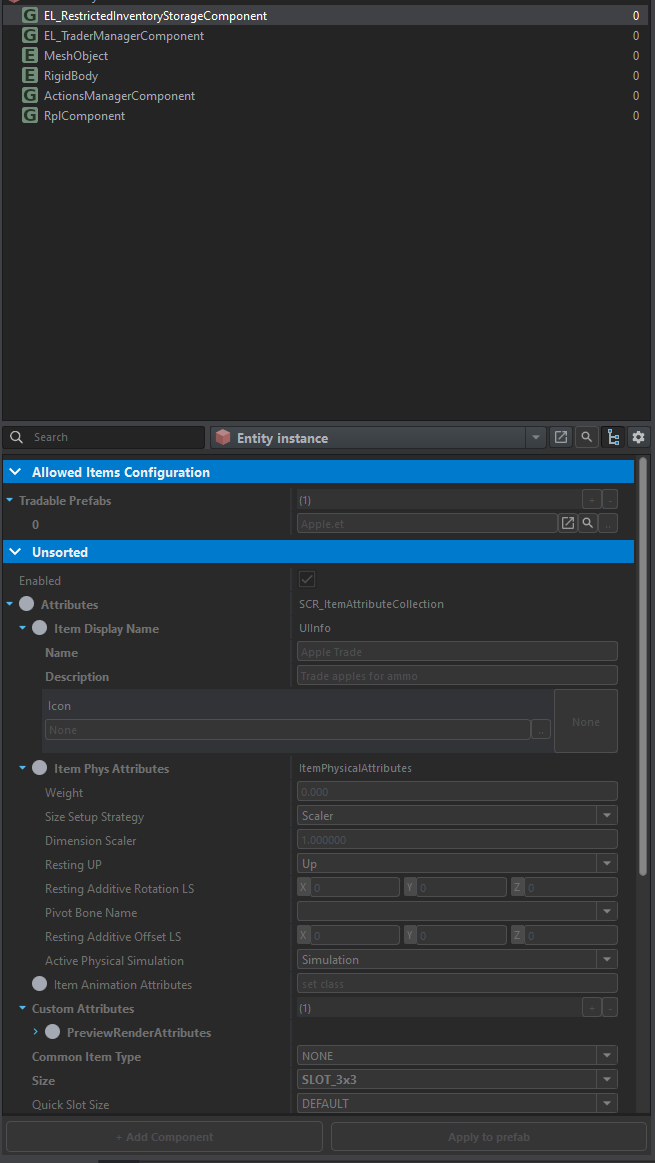
we see here at the begining the item that the prefab take (in the exemple it's an apple)

##### ****- EL\_TraderManagerComponent****

[![image.png](https://wiki.nabla.sh/uploads/images/gallery/2024-12/scaled-1680-/DITimage.png)](https://wiki.nabla.sh/uploads/images/gallery/2024-12/DITimage.png)
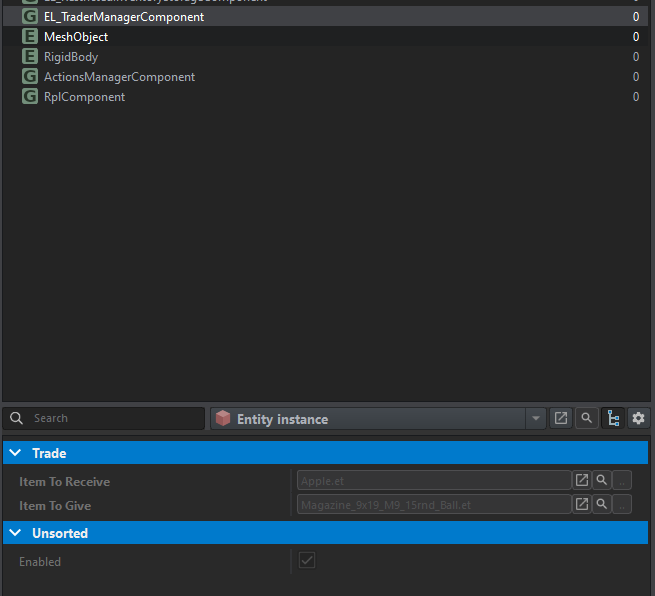
This component is therefore used to take an item and exchange it for another.

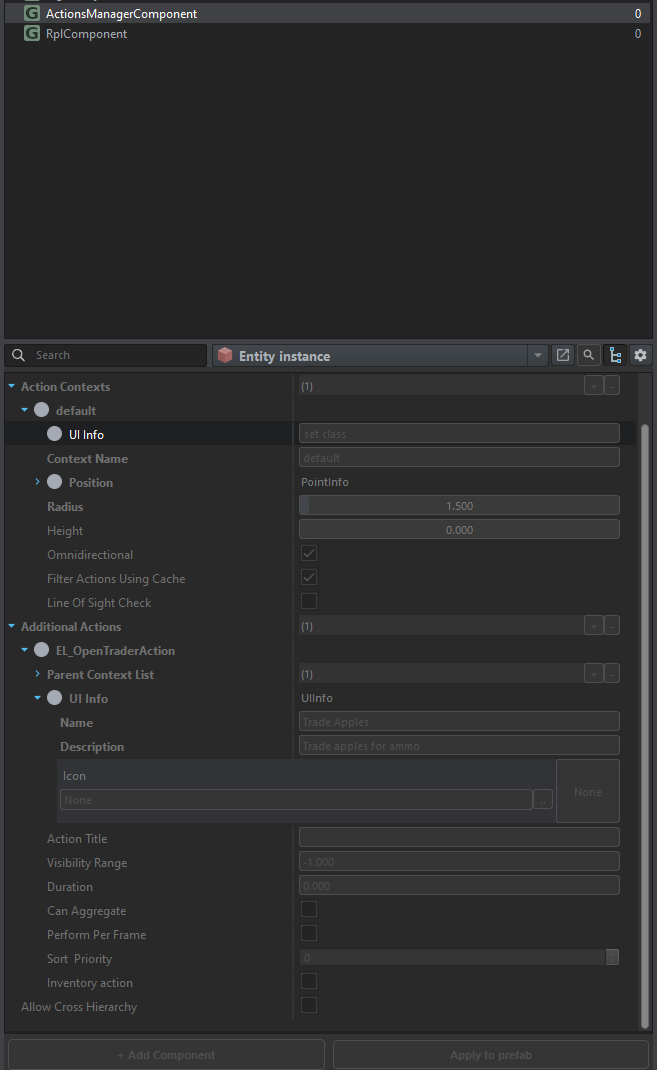
##### ****- Action manager****

[![image.png](https://wiki.nabla.sh/uploads/images/gallery/2024-12/scaled-1680-/JOWimage.png)](https://wiki.nabla.sh/uploads/images/gallery/2024-12/JOWimage.png)
# Create a transform building

we are using the same everon and looking after the ciment process:

[![image.png](https://wiki.nabla.sh/uploads/images/gallery/2024-12/scaled-1680-/7Dvimage.png)](https://wiki.nabla.sh/uploads/images/gallery/2024-12/7Dvimage.png)
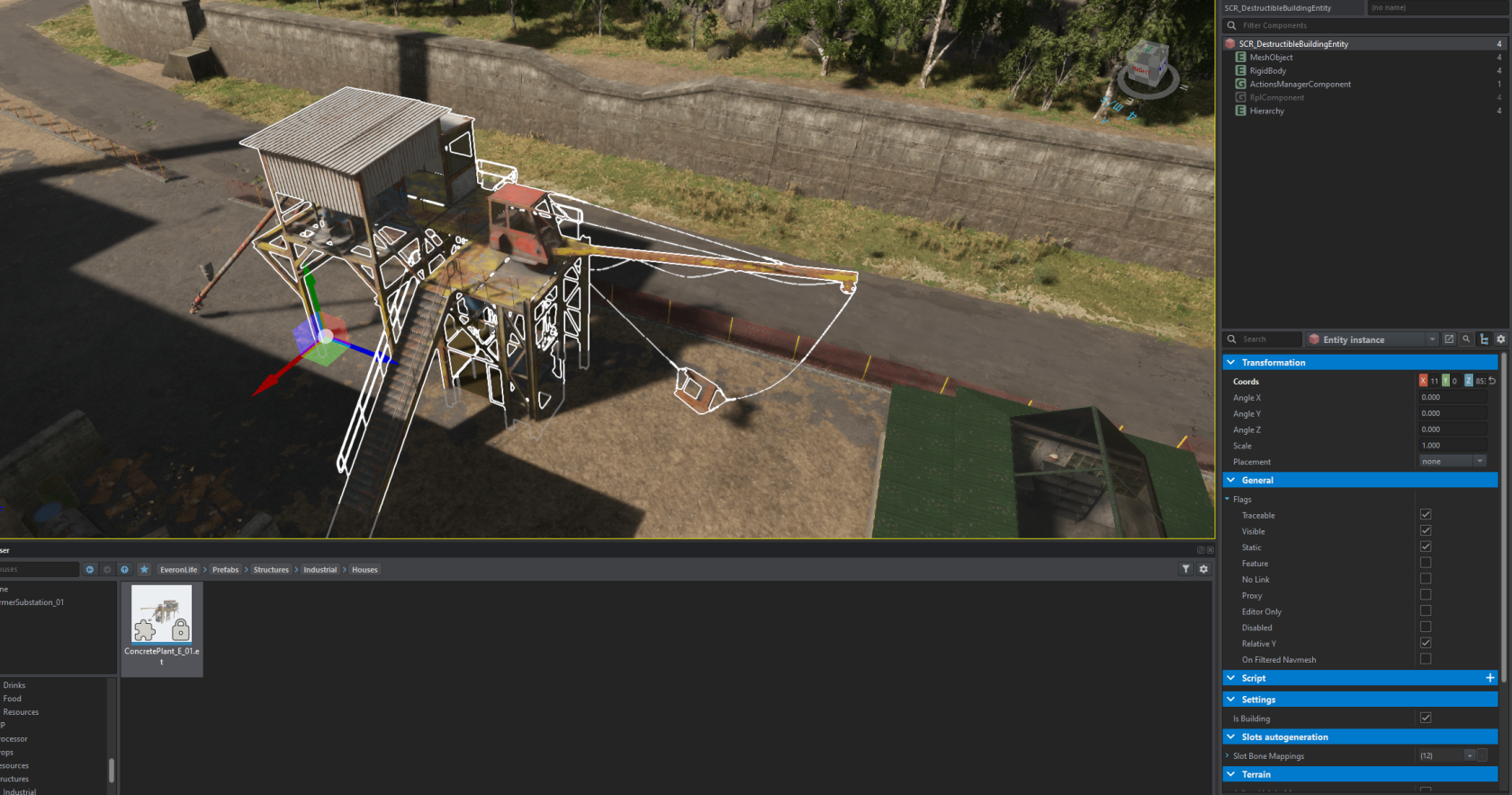
when looking to the action manager we have information on how its working:

[![image.png](https://wiki.nabla.sh/uploads/images/gallery/2024-12/scaled-1680-/hQ2image.png)](https://wiki.nabla.sh/uploads/images/gallery/2024-12/hQ2image.png)
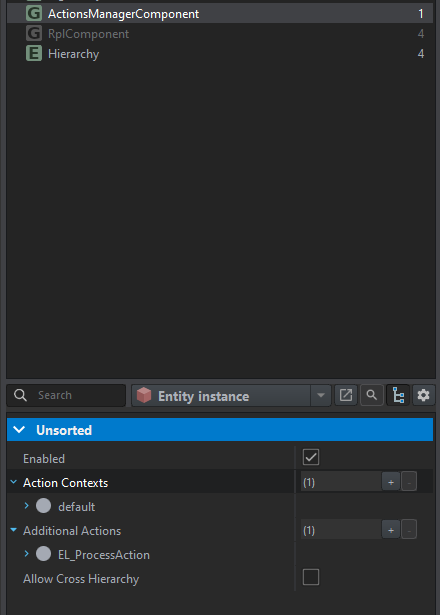
as we can see we have 3 input prefab and 1 output:

[![image.png](https://wiki.nabla.sh/uploads/images/gallery/2024-12/scaled-1680-/Ferimage.png)](https://wiki.nabla.sh/uploads/images/gallery/2024-12/Ferimage.png)
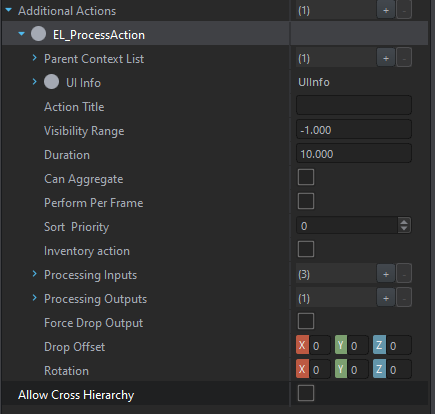
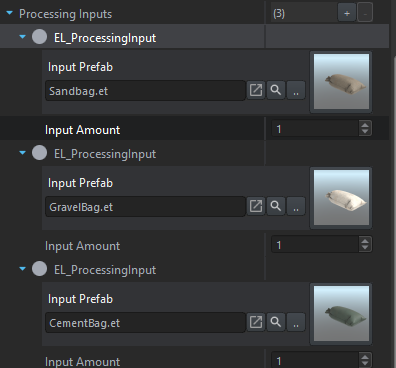
we need to collect all 3 to get the output, as we can see we can tell how many of each ingrediant we need:

[![image.png](https://wiki.nabla.sh/uploads/images/gallery/2024-12/scaled-1680-/Erbimage.png)](https://wiki.nabla.sh/uploads/images/gallery/2024-12/Erbimage.png)
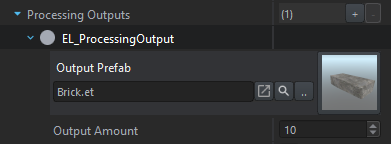
After that we put whta prefab as an output we have and select how many we have:

[![image.png](https://wiki.nabla.sh/uploads/images/gallery/2024-12/scaled-1680-/QbPimage.png)](https://wiki.nabla.sh/uploads/images/gallery/2024-12/QbPimage.png)
# CRX mission header setting

<p class="callout info"><span style="white-space:pre-wrap;">based on the message: </span>[https://discord.com/channels/105462288051380224/1050433454388547644/1356396266107437237](https://discord.com/channels/105462288051380224/1050433454388547644/1356396266107437237)</p>

<p class="callout warning"><span style="white-space:pre-wrap;">Requirement: </span>****CRX Enfusion A.I. ( STABLE 1.3 Update v.1.3.14 )****</p>

****1. you will need to add thsi to your config of your dedicated server:****

**"missionHeader": {**

 **"m\_CRX\_Settings": {**

 **"m\_bIsCRX": true,**

 **"m\_fWeaponFiredReactionDistance": 500,**

 **"m\_fSuppressedWeaponFiredAudibleDistance": 100,**

 **"m\_bInvestigate": true,**

 **"m\_eCombatMode": "YELLOW",**

 **"m\_bSuppress": true,**

 **"m\_fPerceptionSafe": 1.0,**

 **"m\_fPerceptionVigilant": 3.0,**

 **"m\_fAimAccuracyErrorModifier": 0.0**

 **}**

**}**

****2. it will have somethin like that:****  
[![image.png](https://wiki.nabla.sh/uploads/images/gallery/2025-04/scaled-1680-/hcfimage.png)](https://wiki.nabla.sh/uploads/images/gallery/2025-04/hcfimage.png)
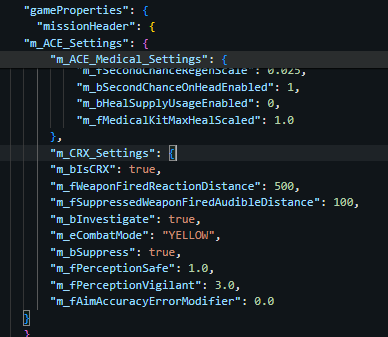
****3. Tweak the setting as you wish****

<table id="bkmrk-parameter-namedefaul"><colgroup><col></col><col></col><col></col><col style="width:501px;"></col></colgroup><tbody><tr><th>Parameter Name

</th><th>Default Value

</th><th>Simple Description

</th><th>In-Game Effect

</th></tr><tr><td>`<span class="editor-theme-code">m_bIsCRX</span>`

</td><td>`<span class="editor-theme-code">true</span>`

</td><td>Enables CRX-specific settings

</td><td>Signals that CRX AI settings are active for this mission. Can be used by other scripts to toggle CRX-related features.

</td></tr><tr><td>`<span class="editor-theme-code">m_fWeaponFiredReactionDistance</span>`

</td><td>`<span class="editor-theme-code">500</span>`

</td><td>Distance (in meters) within which AI groups react to unsuppressed gunfire

</td><td>Higher values make AI detect and react to gunfire from farther away. They may become alert, take cover, or move toward the sound source.

</td></tr><tr><td>`<span class="editor-theme-code">m_fSuppressedWeaponFiredAudibleDistance</span>`

</td><td>`<span class="editor-theme-code">100</span>`

</td><td><span style="white-space:pre-wrap;">Distance (in meters) within which AI can hear </span>

****suppressed****

<span style="white-space:pre-wrap;"> gunfire</span>

</td><td>Controls how well AI detect suppressed gunfire. Useful for stealth missions — lower values mean better stealth, higher values mean AI are more aware of silent shots.

</td></tr><tr><td>`<span class="editor-theme-code">m_bInvestigate</span>`

</td><td>`<span class="editor-theme-code">true</span>`

</td><td>Enables AI investigation behavior

</td><td>If enabled, AI will investigate suspicious events like gunshots, dead bodies, or enemy presence. Makes AI behave more intelligently and realistically.

</td></tr><tr><td>`<span class="editor-theme-code">m_eCombatMode</span>`

</td><td>`<span class="editor-theme-code">"YELLOW"</span>`

</td><td>Initial combat readiness mode for AI

</td><td><span style="white-space:pre-wrap;">Controls how alert AI are: </span>

`<span class="editor-theme-code">YELLOW</span>`

<span style="white-space:pre-wrap;"> means alert but not engaged, </span>

`<span class="editor-theme-code">RED</span>`

<span style="white-space:pre-wrap;"> means fully engaged in combat, etc. Affects how quickly they react to enemies and how they patrol or hold positions.</span>

</td></tr><tr><td>`<span class="editor-theme-code">m_bSuppress</span>`

</td><td>`<span class="editor-theme-code">true</span>`

</td><td>Enables AI suppression fire behavior

</td><td>If enabled, AI will use suppressive fire tactics — shooting to pin enemies down rather than aiming directly, especially in combat or ambush situations.

</td></tr><tr><td>`<span class="editor-theme-code">m_fPerceptionSafe</span>`

</td><td>`<span class="editor-theme-code">1.0</span>`

</td><td><span style="white-space:pre-wrap;">AI perception level in </span>

**safe**

<span style="white-space:pre-wrap;"> (idle/patrolling) state</span>

</td><td>Higher values mean AI will more easily notice small sounds or movements while in relaxed or non-alert states.

</td></tr><tr><td>`<span class="editor-theme-code">m_fPerceptionVigilant</span>`

</td><td>`<span class="editor-theme-code">3.0</span>`

</td><td><span style="white-space:pre-wrap;">AI perception level in </span>

**vigilant**

<span style="white-space:pre-wrap;"> (alert but not engaged) state</span>

</td><td>Similar to above but applies during heightened alert status. The higher the value, the more easily AI spot threats even before direct engagement.

</td></tr><tr><td>`<span class="editor-theme-code">m_fAimAccuracyErrorModifier</span>`

</td><td>`<span class="editor-theme-code">0.0</span>`

</td><td>Modifies AI aim accuracy error. Positive = worse aim, Negative = better aim

</td><td><span style="white-space:pre-wrap;">Adjusts AI shooting skill: </span>

`<span class="editor-theme-code">+1.0</span>`

<span style="white-space:pre-wrap;"> makes them miss more often, </span>

`<span class="editor-theme-code">-0.5</span>`

<span style="white-space:pre-wrap;"> makes them more accurate than default. Useful to tweak AI difficulty based on your mission or gameplay balance.</span>

</td></tr></tbody></table>

[![image.png](https://wiki.nabla.sh/uploads/images/gallery/2025-04/scaled-1680-/U4qimage.png)](https://wiki.nabla.sh/uploads/images/gallery/2025-04/U4qimage.png)

[![image.png](https://wiki.nabla.sh/uploads/images/gallery/2025-04/scaled-1680-/ut7image.png)](https://wiki.nabla.sh/uploads/images/gallery/2025-04/ut7image.png)

goes from 0.0 to 3.0  
  
[![image.png](https://wiki.nabla.sh/uploads/images/gallery/2025-04/scaled-1680-/tWbimage.png)](https://wiki.nabla.sh/uploads/images/gallery/2025-04/tWbimage.png)

goes from 0.0 to 5.0

[![image.png](https://wiki.nabla.sh/uploads/images/gallery/2025-04/scaled-1680-/f1Pimage.png)](https://wiki.nabla.sh/uploads/images/gallery/2025-04/f1Pimage.png)

goes from -3.0 to 3.0

# IPC Autonomous Capture AI

****IPCAutonomousCaptureAI****<span style="white-space:pre-wrap;"> is a mod designed for the </span>**Conflict**<span style="white-space:pre-wrap;"> game mode in Arma Reforger. It introduces an </span>****autonomous AI capture system****<span style="white-space:pre-wrap;">, enabling AI units to dynamically capture objectives without player intervention. Spawned AI will automatically locate and move toward the current </span>****Main Objective****, supporting a more immersive and reactive battlefield experience.

## <span style="white-space:pre-wrap;">1. How to Use the Autonomous Capture Spawn Point </span>

<span style="white-space:pre-wrap;">To set up an autonomous AI group that dynamically targets objectives in the </span>**Conflict**<span style="white-space:pre-wrap;"> mode, simply place the prefab </span>**`<strong class="editor-theme-bold editor-theme-code">IPC_AutonomousCaptureSpawnPoint</strong>`**<span style="white-space:pre-wrap;"> in your scenario using the World Editor.</span>

##### ✅ Basic Setup

- <span style="white-space:pre-wrap;">Ensure the entity has a </span>**`<strong class="editor-theme-bold editor-theme-code">SCR_FactionAffiliationComponent</strong>`**<span style="white-space:pre-wrap;"> set to the faction you want.</span>
- <span style="white-space:pre-wrap;">Place the prefab close to a </span>****military base****<span style="white-space:pre-wrap;"> or </span>****target point****.
- <span style="white-space:pre-wrap;">Upon scenario start, the AI group will </span>****spawn****<span style="white-space:pre-wrap;">, </span>****select a target****<span style="white-space:pre-wrap;">, and </span>****move toward it****<span style="white-space:pre-wrap;"> automatically.</span>

##### ⚙️ Configurable Attributes Explained

Here’s a breakdown of each configuration field and its effect:

<table id="bkmrk-attributedescription"><colgroup><col></col><col></col></colgroup><tbody><tr><th>****Attribute****</th><th>****Description****</th></tr><tr><td>`<span class="editor-theme-code">m_eGroupType</span>`

</td><td>Defines the type of group to spawn (e.g., Fireteam, Squad).

</td></tr><tr><td>`<span class="editor-theme-code">m_bPickRandomGroupType</span>`

</td><td>Randomly selects a group type on spawn.

</td></tr><tr><td>`<span class="editor-theme-code">m_isGroupUpdate</span>`

</td><td>Enables dynamic group change after X respawns.

</td></tr><tr><td>`<span class="editor-theme-code">m_iGroupUpdateRate</span>`

</td><td>Number of respawns before group type is updated.

</td></tr><tr><td>`<span class="editor-theme-code">m_iRespawnPeriod</span>`

</td><td><span style="white-space:pre-wrap;">Time (in seconds) before the group respawns. </span>`<span class="editor-theme-code">0 = no respawn</span>`.

</td></tr><tr><td>`<span class="editor-theme-code">m_fAILimitThreshold</span>`

</td><td>Prevents spawning if too many AIs already exist globally (as ratio).

</td></tr><tr><td>`<span class="editor-theme-code">m_iNum</span>`

</td><td>Number of groups to spawn at once.

</td></tr><tr><td>`<span class="editor-theme-code">m_eTargetType</span>`

</td><td><span style="white-space:pre-wrap;">Defines the AI’s target type: </span>`<span class="editor-theme-code">MainTarget</span>`<span style="white-space:pre-wrap;">, </span>`<span class="editor-theme-code">EnemyMainTarget</span>`<span style="white-space:pre-wrap;">, </span>`<span class="editor-theme-code">Base</span>`<span style="white-space:pre-wrap;">, </span>`<span class="editor-theme-code">CapturePoint</span>`<span style="white-space:pre-wrap;">, or </span>`<span class="editor-theme-code">Player</span>`.

</td></tr><tr><td>`<span class="editor-theme-code">m_fTargetRange</span>`

</td><td>Maximum distance to target to allow spawn.

</td></tr><tr><td>`<span class="editor-theme-code">m_sTargetFactionKey</span>`

</td><td>Key of the enemy faction (e.g., "USSR") for target logic.

</td></tr><tr><td>`<span class="editor-theme-code">m_iTargetUpdateTimeout</span>`

</td><td>Time interval (ms) between target updates.

</td></tr><tr><td>`<span class="editor-theme-code">m_iWaypointUpdateTimeout</span>`

</td><td>Time interval (ms) between waypoint recalculations.

</td></tr><tr><td>`<span class="editor-theme-code">m_fDespawnRange</span>`

</td><td>If no players are within this range, AI will despawn.

</td></tr><tr><td>`<span class="editor-theme-code">m_fSpawnProtectRange</span>`

</td><td>Prevents AI from spawning too close to players.

</td></tr><tr><td>`<span class="editor-theme-code">SpawnProtect</span>`

</td><td>Enable/disable spawn protection behavior.

</td></tr><tr><td>`<span class="editor-theme-code">dynamicDespawn</span>`

</td><td>Despawn AI when players are far away.

</td></tr><tr><td>`<span class="editor-theme-code">spawnOnlyNearest</span>`

</td><td>Only spawn if this base is closest to the current target.

</td></tr><tr><td>`<span class="editor-theme-code">m_iPlayer</span>`

</td><td>Number of players required to allow spawn.

</td></tr><tr><td>`<span class="editor-theme-code">m_sNoSpawnFactionKey</span>`

</td><td>Disables spawn if nearest base belongs to this faction.

</td></tr><tr><td>`<span class="editor-theme-code">m_sSpawnOnlyFactionKey</span>`

</td><td>Enables spawn only if nearest base belongs to this faction.

</td></tr><tr><td>`<span class="editor-theme-code">m_bShowMarker</span>`

</td><td>Show map marker for the AI group.

</td></tr><tr><td>`<span class="editor-theme-code">m_bShowToEveryone</span>`

</td><td>Make the marker visible to all factions.

</td></tr></tbody></table>

##### 🧪 AI Behavior

- AI group dynamically updates its waypoint to the selected target type.
- <span style="white-space:pre-wrap;">Skill level is scaled depending on the </span>****number of players online****.
- <span style="white-space:pre-wrap;">If no valid target is found or conditions are unmet (e.g., players too close), the group will </span>****not spawn****.
- <span style="white-space:pre-wrap;">Waypoint and group are updated live based on </span>****real-time campaign state****.

---

## <span style="white-space:pre-wrap;">2. How to Use the Autonomous Capture Spawn Point </span>****with Vehicle****

<span style="white-space:pre-wrap;">The </span>`<span class="editor-theme-code">IPC_AutonomousCaptureSpawnPointWithVehicle</span>`<span style="white-space:pre-wrap;"> prefab works just like the standard version, but includes </span>****vehicle support****. AI groups will spawn with vehicles and automatically mount them before moving to their objective.

##### 🧱 Setup Instructions

1. <span style="white-space:pre-wrap;">Place the prefab in the </span>****World Editor****, same as the non-vehicle version.
2. <span style="white-space:pre-wrap;">Ensure the faction is correctly assigned with a </span>`<span class="editor-theme-code">SCR_FactionAffiliationComponent</span>`.
3. Define which vehicle to use for each group type.
4. AI groups will:
    - Spawn next to the vehicle
    - Mount it using the provided "Get In" waypoint
    - Move toward the target (main objective, base, or enemy unit)

##### ⚙️ Additional Configurable Attributes

<span style="white-space:pre-wrap;">This prefab inherits </span>****all options****<span style="white-space:pre-wrap;"> from </span>`<span class="editor-theme-code">IPC_AutonomousCaptureSpawnPointComponent</span>`<span style="white-space:pre-wrap;"> and adds vehicle-specific settings:</span>

<table id="bkmrk-attributedescription-1"><colgroup><col style="width:551px;"></col><col style="width:612px;"></col></colgroup><tbody><tr><th>****Attribute****</th><th>****Description****</th></tr><tr><td>`<span class="editor-theme-code">m_sVehicle_TeamSentry</span>`

</td><td><span style="white-space:pre-wrap;">Prefab for vehicle used by </span>****TEAM\_SENTRY****<span style="white-space:pre-wrap;"> group.</span>

</td></tr><tr><td>`<span class="editor-theme-code">m_sVehicle_TeamMG</span>`

</td><td><span style="white-space:pre-wrap;">Prefab for vehicle used by </span>****TEAM\_MG****<span style="white-space:pre-wrap;"> group.</span>

</td></tr><tr><td>`<span class="editor-theme-code">m_sVehicle_TeamAT</span>`

</td><td><span style="white-space:pre-wrap;">Prefab for vehicle used by </span>****TEAM\_AT****<span style="white-space:pre-wrap;"> group.</span>

</td></tr><tr><td>`<span class="editor-theme-code">m_sVehicle_Fireteam</span>`

</td><td><span style="white-space:pre-wrap;">Prefab for vehicle used by </span>****FIRETEAM****<span style="white-space:pre-wrap;"> group.</span>

</td></tr><tr><td>`<span class="editor-theme-code">m_sVehicle_SquadRifle</span>`

</td><td><span style="white-space:pre-wrap;">Prefab for vehicle used by </span>****SQUAD\_RIFLE****<span style="white-space:pre-wrap;"> group.</span>

</td></tr><tr><td>`<span class="editor-theme-code">m_sGetInWaypointPrefab</span>`

</td><td>Waypoint prefab used by AI to mount the vehicle after spawn.

</td></tr></tbody></table>

> <span style="white-space:pre-wrap;">💡 </span>**Each group type can have its own vehicle. If no vehicle is defined for the type, the AI will behave like a normal foot patrol.**

##### 🛠️ Vehicle Behavior Logic

- <span style="white-space:pre-wrap;">Vehicles are spawned </span>****only once per patrol group****.
- <span style="white-space:pre-wrap;">If the patrol despawns (e.g., no players nearby), the vehicle is also </span>****automatically removed****.
- <span style="white-space:pre-wrap;">The waypoint used makes sure AI </span>****gets inside****<span style="white-space:pre-wrap;"> the vehicle before moving.</span>
- <span style="white-space:pre-wrap;">Marker icon will change to </span>****motorized****<span style="white-space:pre-wrap;"> if the patrol includes a vehicle.</span>

##### 🔁 Integration with Existing Systems

This prefab is fully compatible with:

- ****Dynamic despawn/spawn****
- ****Player proximity settings****
- ****Faction-based filtering****
- ****Marker visibility options****
- ****Target type options****<span style="white-space:pre-wrap;"> (</span>`<span class="editor-theme-code">MainTarget</span>`<span style="white-space:pre-wrap;">, </span>`<span class="editor-theme-code">Base</span>`, etc.)

---

## <span style="white-space:pre-wrap;">3. How to Use the Autonomous Capture Spawn Point </span>****with Mortar****

<span style="white-space:pre-wrap;">The </span>`<span class="editor-theme-code">IPC_MortarSpawnPoint</span>`<span style="white-space:pre-wrap;"> prefab is a special variant that deploys AI groups operating </span>****mortar positions****<span style="white-space:pre-wrap;">. It enables indirect fire support targeting enemy factions dynamically during gameplay. Ideal for adding long-range artillery threats in </span>**Conflict**<span style="white-space:pre-wrap;"> scenarios.</span>

##### 🧱 Setup Instructions

1. <span style="white-space:pre-wrap;">Place the prefab in the </span>****World Editor****<span style="white-space:pre-wrap;">, with a </span>`<span class="editor-theme-code">SCR_FactionAffiliationComponent</span>`<span style="white-space:pre-wrap;"> for correct faction assignment.</span>
2. Define the mortar composition prefab, "Get In" waypoint, and artillery support waypoint in the entity attributes.
3. On activation:
    - The mortar composition is spawned at the prefab’s location.
    - <span style="white-space:pre-wrap;">An AI group is created and tasked with launching </span>****periodic artillery attacks****<span style="white-space:pre-wrap;"> toward a valid enemy objective.</span>

##### ⚙️ Additional Configurable Attributes

<span style="white-space:pre-wrap;">Inherits all settings from </span>`<span class="editor-theme-code">IPC_AutonomousCaptureSpawnPointComponent</span>`, plus the following mortar-specific options:

<table id="bkmrk-attributedescription-2"><colgroup><col></col><col></col></colgroup><tbody><tr><th>****Attribute****</th><th>****Description****</th></tr><tr><td>`<span class="editor-theme-code">m_sMortar</span>`

</td><td><span style="white-space:pre-wrap;">Mortar prefab to be spawned (e.g. </span>`<span class="editor-theme-code">MortarPlacement_S_USSR_01</span>`).

</td></tr><tr><td>`<span class="editor-theme-code">m_sGetInWaypointPrefab</span>`

</td><td><span style="white-space:pre-wrap;">Waypoint for AI to enter the mortar (typically </span>`<span class="editor-theme-code">AIWaypoint_GetInNearest</span>`).

</td></tr><tr><td>`<span class="editor-theme-code">m_sArtillerySupportWaypointPrefab</span>`

</td><td><span style="white-space:pre-wrap;">Waypoint to handle firing behavior (typically </span>`<span class="editor-theme-code">AIWaypoint_ArtillerySupport</span>`).

</td></tr><tr><td>`<span class="editor-theme-code">m_iShots</span>`

</td><td>Number of mortar rounds per firing session (`<span class="editor-theme-code">-1</span>`<span style="white-space:pre-wrap;"> = infinite, recommended: 5–10).</span>

</td></tr><tr><td>`<span class="editor-theme-code">m_iMortarTimeout</span>`

</td><td>Time between two fire waves (milliseconds).

</td></tr><tr><td>`<span class="editor-theme-code">m_fmaxRange</span>`

</td><td>Max distance for randomizing target position (meters).

</td></tr></tbody></table>

##### 🧪 Mortar Behavior

- <span style="white-space:pre-wrap;">Mortars will </span>****fire at enemy positions****<span style="white-space:pre-wrap;"> dynamically based on the configured target type:</span>
    - Main target
    - Enemy base
    - Player proximity
- <span style="white-space:pre-wrap;">If players from the target faction are detected near the objective, a </span>****strike is called****.
- Mortars will respect dynamic despawn logic if players move away or the group is wiped.
- <span style="white-space:pre-wrap;">After firing, AI waits based on </span>`<span class="editor-theme-code">m_iMortarTimeout</span>`<span style="white-space:pre-wrap;"> before engaging again.</span>

##### 📍 Example Use Case

<span style="white-space:pre-wrap;">You want to simulate </span>****indirect fire support****<span style="white-space:pre-wrap;"> behind a frontline. Set:</span>

- `<span class="editor-theme-code">TargetType</span>`<span style="white-space:pre-wrap;">: </span>`<span class="editor-theme-code">EnemyMainTarget</span>`
- `<span class="editor-theme-code">Shots</span>`: 8
- `<span class="editor-theme-code">Timeout</span>`: 90000 (90 seconds)
- `<span class="editor-theme-code">MaxRange</span>`: 30
- Mortar prefab: USSR or US artillery placement

The AI will fire 8 rounds on the enemy’s main objective every 90 seconds if within range.

# Freedmon Fighter

<span>The one and only scenario that is worth to try made by the greatest: </span><span>JohnnyKerner</span>  
  
https://www.johnnykerner.dev/FreedomFighters/download/index.html

# Define a military base (POI) (exemple with levie on EDEN)

####   
[![image.png](https://wiki.nabla.sh/uploads/images/gallery/2025-08/scaled-1680-/image.png)](https://wiki.nabla.sh/uploads/images/gallery/2025-08/image.png)

First thing that we notice is the large spline  
[![image.png](https://wiki.nabla.sh/uploads/images/gallery/2025-08/scaled-1680-/uVVimage.png)](https://wiki.nabla.sh/uploads/images/gallery/2025-08/uVVimage.png)

As we can see there is 2 tag link to this "Zone"  
<span style="white-space: pre-wrap;">- POI\_area (i am assumgin for drawing on the map info) </span>[![image.png](https://wiki.nabla.sh/uploads/images/gallery/2025-08/scaled-1680-/JInimage.png)](https://wiki.nabla.sh/uploads/images/gallery/2025-08/JInimage.png)

\- BLOCK\_TRAFFIC (to prevent IA entering in the military zone for Roleplay purpose)  
  
When we select the other area we have other tags  
[![image.png](https://wiki.nabla.sh/uploads/images/gallery/2025-08/scaled-1680-/KeGimage.png)](https://wiki.nabla.sh/uploads/images/gallery/2025-08/KeGimage.png)

\- BATTLE\_AREA is the area in which you have to be to progress capturing (if no players are inside, you start to lose).  
<span style="color: rgb(241, 196, 15);">you can have as many as you like. So for example you can have 4 buildings and only players inside buildings will count.</span>  
  
<span style="color: rgb(224, 62, 45);">Btw. important thing, zone entity origin has to be within distance of the controller to work. By default that is 25 meters I think.</span>  
  
  
\- PLAYER\_COSNTRUCTION to let player build in the area their fob or other  
  
We have also siren placed in the base to alert player and IA of an attack  
[![image.png](https://wiki.nabla.sh/uploads/images/gallery/2025-08/scaled-1680-/BvHimage.png)](https://wiki.nabla.sh/uploads/images/gallery/2025-08/BvHimage.png)

And the MBC\_Levie wich seem to be the core logic of the base with all the setting of the POI  
[![image.png](https://wiki.nabla.sh/uploads/images/gallery/2025-08/scaled-1680-/XPwimage.png)](https://wiki.nabla.sh/uploads/images/gallery/2025-08/XPwimage.png)

First thing we notice is the Base Range

# Define a Power Plant (POI) (exemple with powerplant on EDEN)

[![image.png](https://wiki.nabla.sh/uploads/images/gallery/2025-08/scaled-1680-/k9dimage.png)](https://wiki.nabla.sh/uploads/images/gallery/2025-08/k9dimage.png)

Same principle you have at least 2 zone (poi + battle)

[![image.png](https://wiki.nabla.sh/uploads/images/gallery/2025-08/scaled-1680-/Cbiimage.png)](https://wiki.nabla.sh/uploads/images/gallery/2025-08/Cbiimage.png)  
<span style="white-space: pre-wrap;">inner circle is the battle zone and the outter is the poi </span>  
  
<span style="white-space: pre-wrap;">we see 2 SlotFlatSmall that are used </span>  
[![image.png](https://wiki.nabla.sh/uploads/images/gallery/2025-08/scaled-1680-/7h8image.png)](https://wiki.nabla.sh/uploads/images/gallery/2025-08/7h8image.png)

# Define a Fuel Station (POI)

[![image.png](https://wiki.nabla.sh/uploads/images/gallery/2025-08/scaled-1680-/EViimage.png)](https://wiki.nabla.sh/uploads/images/gallery/2025-08/EViimage.png)

Just add the prefab JWK\_FuelStationController

# Define a Factorie (POI) (exemple with factorie FC_CementPlant on EDEN)

![image.png](https://wiki.nabla.sh/uploads/images/gallery/2025-08/scaled-1680-/PTvimage.png)

<span style="white-space: pre-wrap;">We cann see only 1 zone is required </span>

that regroupe POI, Battle and block traffic

[![image.png](https://wiki.nabla.sh/uploads/images/gallery/2025-08/scaled-1680-/a9yimage.png)](https://wiki.nabla.sh/uploads/images/gallery/2025-08/a9yimage.png)

we also have the prefab that would generate the supplies  
[![image.png](https://wiki.nabla.sh/uploads/images/gallery/2025-08/scaled-1680-/y5jimage.png)](https://wiki.nabla.sh/uploads/images/gallery/2025-08/y5jimage.png)

And some Abient parking spot

[![image.png](https://wiki.nabla.sh/uploads/images/gallery/2025-08/scaled-1680-/9W8image.png)](https://wiki.nabla.sh/uploads/images/gallery/2025-08/9W8image.png)

# Define a Town (POI) (exemple with Montiniac on EDEN)

[![image.png](https://wiki.nabla.sh/uploads/images/gallery/2025-08/scaled-1680-/VMUimage.png)](https://wiki.nabla.sh/uploads/images/gallery/2025-08/VMUimage.png)

we can see the first 5 prefab are MCP\_Montignac\_"Directions"[![image.png](https://wiki.nabla.sh/uploads/images/gallery/2025-08/scaled-1680-/vlPimage.png)](https://wiki.nabla.sh/uploads/images/gallery/2025-08/vlPimage.png)

Theses prefab need to place at all the entry of the city[![image.png](https://wiki.nabla.sh/uploads/images/gallery/2025-08/scaled-1680-/JH7image.png)](https://wiki.nabla.sh/uploads/images/gallery/2025-08/JH7image.png)

After we see JWK\_AmbientDonationPoint

[![image.png](https://wiki.nabla.sh/uploads/images/gallery/2025-08/scaled-1680-/W2fimage.png)](https://wiki.nabla.sh/uploads/images/gallery/2025-08/W2fimage.png)

This seem to be triggering some action when you bring supply on a vehicule to a city  
<span style="color: rgb(241, 196, 15);">They are placed all around a city in some logic point where the player have to realise that he can donate supplies here (place on the city, pharmacy, shopping mall to be more roleplay)</span>  
**Jail zones are not required, if there is no extra one then the building will spawn default zone (which covers the building itself only).**

[![image.png](https://wiki.nabla.sh/uploads/images/gallery/2025-08/scaled-1680-/Yqjimage.png)](https://wiki.nabla.sh/uploads/images/gallery/2025-08/Yqjimage.png)

You have to put also a jailzone in each city (seems to be auto generated with thje police building dont bother add zone)  
<span style="color: rgb(241, 196, 15);">After set the type of the city (City, town, Village) it is recommaend to let a jail only in town and city</span>

[![image.png](https://wiki.nabla.sh/uploads/images/gallery/2025-08/scaled-1680-/4c7image.png)](https://wiki.nabla.sh/uploads/images/gallery/2025-08/4c7image.png)

To setup the size of the city:

<span style="color: rgb(0, 0, 0); background-color: oklab(0.678888 0.00325716 -0.011175 / 0.0784314);">JWK\_TownController prefab -&gt; JWK\_TownEntity -&gt; at the end of the properties list.</span>

[![image.png](https://wiki.nabla.sh/uploads/images/gallery/2025-08/scaled-1680-/Flcimage.png)](https://wiki.nabla.sh/uploads/images/gallery/2025-08/Flcimage.png)

# Public transportation

1\. Ferry

you can place down some ferry sign to let people take the boat to get to other palce that have this sign  
[https://enfusionengine.com/api/redirect?to=enfusion://ResourceManager/~FreedomFighters:Prefabs/Modded/Structures/Signs/Traffic/SignFerryStop.et](https://enfusionengine.com/api/redirect?to=enfusion://ResourceManager/~FreedomFighters:Prefabs/Modded/Structures/Signs/Traffic/SignFerryStop.et)<span style="white-space: pre-wrap;"> </span>

[![image.png](https://wiki.nabla.sh/uploads/images/gallery/2025-08/scaled-1680-/rUqimage.png)](https://wiki.nabla.sh/uploads/images/gallery/2025-08/rUqimage.png)

2\. Bus sign

the scenario use automatcly the stop sign that have been placed down in the map by ovveriding the default component

[https://enfusionengine.com/api/redirect?to=enfusion://ResourceManager/~FreedomFighters:Prefabs/Modded/Structures/Signs/Traffic/SignBusStop\_01.et](https://enfusionengine.com/api/redirect?to=enfusion://ResourceManager/~FreedomFighters:Prefabs/Modded/Structures/Signs/Traffic/SignBusStop_01.et)

[![image.png](https://wiki.nabla.sh/uploads/images/gallery/2025-08/scaled-1680-/J8Aimage.png)](https://wiki.nabla.sh/uploads/images/gallery/2025-08/J8Aimage.png)

You will need to verify if the prefab stop sign you use are the vanilla one or add the component to your bussign

# Define a RadioTowers

you can have two variant:

1\. If the mapp already have radio tower down

2\. If you need to add a radiotower yourself in the map

  
Here the radio is already there and there is a wall around it so we add a poi zone

[https://enfusionengine.com/api/redirect?to=enfusion://ResourceManager/~FreedomFighters:Prefabs/World/JWK\_PolylineWorldZone.et](https://enfusionengine.com/api/redirect?to=enfusion://ResourceManager/~FreedomFighters:Prefabs/World/JWK_PolylineWorldZone.et)

[![image.png](https://wiki.nabla.sh/uploads/images/gallery/2025-08/scaled-1680-/Hj3image.png)](https://wiki.nabla.sh/uploads/images/gallery/2025-08/Hj3image.png)

here there is no wall so it juste the component of radio  
[https://enfusionengine.com/api/redirect?to=enfusion://ResourceManager/~FreedomFighters:Prefabs/Controllers/Loadtime/JWK\_RadioSiteController.et](https://enfusionengine.com/api/redirect?to=enfusion://ResourceManager/~FreedomFighters:Prefabs/Controllers/Loadtime/JWK_RadioSiteController.et)

[![image.png](https://wiki.nabla.sh/uploads/images/gallery/2025-08/scaled-1680-/3AMimage.png)](https://wiki.nabla.sh/uploads/images/gallery/2025-08/3AMimage.png)

here it was empty so we add the tower prefab + the radio component

[![image.png](https://wiki.nabla.sh/uploads/images/gallery/2025-08/scaled-1680-/xxrimage.png)](https://wiki.nabla.sh/uploads/images/gallery/2025-08/xxrimage.png)

[https://enfusionengine.com/api/redirect?to=enfusion://ResourceManager/~FreedomFighters:Prefabs/Modded/Structures/Infrastructure/Towers/TransmitterTower\_01/TransmitterTower\_01\_base.et](https://enfusionengine.com/api/redirect?to=enfusion://ResourceManager/~FreedomFighters:Prefabs/Modded/Structures/Infrastructure/Towers/TransmitterTower_01/TransmitterTower_01_base.et)<span style="white-space: pre-wrap;"> </span>

or

[https://enfusionengine.com/api/redirect?to=enfusion://ResourceManager/~FreedomFighters:Prefabs/Modded/Structures/Infrastructure/Towers/TransmitterTower\_01/TransmitterTower\_01\_medium\_base.et](https://enfusionengine.com/api/redirect?to=enfusion://ResourceManager/~FreedomFighters:Prefabs/Modded/Structures/Infrastructure/Towers/TransmitterTower_01/TransmitterTower_01_medium_base.et)

or

[https://enfusionengine.com/api/redirect?to=enfusion://ResourceManager/~FreedomFighters:Prefabs/Modded/Structures/Infrastructure/Towers/TransmitterTower\_01/TransmitterTower\_01\_small\_base.et](https://enfusionengine.com/api/redirect?to=enfusion://ResourceManager/~FreedomFighters:Prefabs/Modded/Structures/Infrastructure/Towers/TransmitterTower_01/TransmitterTower_01_small_base.et)<span style="white-space: pre-wrap;"> </span>

# Define a RemoteSite

[![image.png](https://wiki.nabla.sh/uploads/images/gallery/2025-08/scaled-1680-/tzIimage.png)](https://wiki.nabla.sh/uploads/images/gallery/2025-08/tzIimage.png)

Remote site are point that are not in the main campagin but still are use for various logic  
they are compose of a JRK\_WorkdSlotControllerComponenet  
  
[![image.png](https://wiki.nabla.sh/uploads/images/gallery/2025-08/scaled-1680-/we2image.png)](https://wiki.nabla.sh/uploads/images/gallery/2025-08/we2image.png)

  
When right click on the compoenent you have a debug menu to help configure it  
[![image.png](https://wiki.nabla.sh/uploads/images/gallery/2025-08/scaled-1680-/035image.png)](https://wiki.nabla.sh/uploads/images/gallery/2025-08/035image.png)

You can sometimes add parking spot if needed  
[![image.png](https://wiki.nabla.sh/uploads/images/gallery/2025-08/scaled-1680-/vnpimage.png)](https://wiki.nabla.sh/uploads/images/gallery/2025-08/vnpimage.png)

[https://enfusionengine.com/api/redirect?to=enfusion://ResourceManager/~FreedomFighters:Prefabs/Controllers/Loadtime/JWK\_AmbientParkingSpot.et](https://enfusionengine.com/api/redirect?to=enfusion://ResourceManager/~FreedomFighters:Prefabs/Controllers/Loadtime/JWK_AmbientParkingSpot.et)<span style="white-space: pre-wrap;"></span>

# Define GenericSlots

Generic Slot are used to spawn composition regarding quest, ennemy IA building or other. They need to be place around the map in a large quantity to add randomness and help the immersion  
  
there is 3 size of generic slot where the compositon will spoan on them

[![image.png](https://wiki.nabla.sh/uploads/images/gallery/2025-08/scaled-1680-/qGximage.png)](https://wiki.nabla.sh/uploads/images/gallery/2025-08/qGximage.png)

<span style="white-space: pre-wrap;">Some exemple of placement </span>

Medium:

[![image.png](https://wiki.nabla.sh/uploads/images/gallery/2025-08/scaled-1680-/mocimage.png)](https://wiki.nabla.sh/uploads/images/gallery/2025-08/mocimage.png)

[![image.png](https://wiki.nabla.sh/uploads/images/gallery/2025-08/scaled-1680-/Pacimage.png)](https://wiki.nabla.sh/uploads/images/gallery/2025-08/Pacimage.png)

[![image.png](https://wiki.nabla.sh/uploads/images/gallery/2025-08/scaled-1680-/PC7image.png)](https://wiki.nabla.sh/uploads/images/gallery/2025-08/PC7image.png)

# Common knowledge

\- be carfull we make the zone to not put to much point on your spline to simplfy calcul of the sceanrio

\- bve carfule also of the range beteween the main componenet of a poi (factories/military) and the coords of the zone you have made

# Add a building to the building list

1\. overide the conf file to add the building you want:[![image.png](https://wiki.nabla.sh/uploads/images/gallery/2026-01/scaled-1680-/image.png)](https://wiki.nabla.sh/uploads/images/gallery/2026-01/image.png)

2\. Duplciate a line in the conf to add a new one  
[![image.png](https://wiki.nabla.sh/uploads/images/gallery/2026-01/scaled-1680-/QvIimage.png)](https://wiki.nabla.sh/uploads/images/gallery/2026-01/QvIimage.png)

Content of a new line:  
[![image.png](https://wiki.nabla.sh/uploads/images/gallery/2026-01/scaled-1680-/OF5image.png)](https://wiki.nabla.sh/uploads/images/gallery/2026-01/OF5image.png)

Name: logical name (somethin small and without space or special chartacer)

Title: The name that would be show in the building list

<span style="white-space: pre-wrap;">description: teh description when chossing the building to buiuld </span>  
Detailed Description: i think it's the one you see while placing the building down  
Preview: is the image that will be shown in the catalog while chossing  
<span style="white-space: pre-wrap;">construction category: </span>[![image.png](https://wiki.nabla.sh/uploads/images/gallery/2026-01/scaled-1680-/1qKimage.png)](https://wiki.nabla.sh/uploads/images/gallery/2026-01/1qKimage.png)

Field Manual Link: if there is a explanation in the field catalogue you can link it here

Cost: cost in supply of the sctructure

Prefabs: the prefab that will be spawned after building it

Ghosts: the prefab that will be shown in transparants white to help you palcing down the building

First of category Free: the first bulding will be free (like the first supply depot that is free when stating a new game)

Requires Build Area: if the building need to be in a specifi area to be build

Build aere type: link to the previous line is for choosse where you allowed people to build this building[![image.png](https://wiki.nabla.sh/uploads/images/gallery/2026-01/scaled-1680-/EU4image.png)](https://wiki.nabla.sh/uploads/images/gallery/2026-01/EU4image.png)

Things you need to do to the prefab to use is coorectly in game:  
1\. Find the prefab you want to add and overide it

[![image.png](https://wiki.nabla.sh/uploads/images/gallery/2026-01/scaled-1680-/gM6image.png)](https://wiki.nabla.sh/uploads/images/gallery/2026-01/gM6image.png)

<span style="white-space: pre-wrap;">Add those 2 coponenet to it: </span>[![image.png](https://wiki.nabla.sh/uploads/images/gallery/2026-01/scaled-1680-/w44image.png)](https://wiki.nabla.sh/uploads/images/gallery/2026-01/w44image.png)

and config it:  
For EPF\_PersitenceComponent  
[![image.png](https://wiki.nabla.sh/uploads/images/gallery/2026-01/scaled-1680-/xhdimage.png)](https://wiki.nabla.sh/uploads/images/gallery/2026-01/xhdimage.png)

And for JWK\_BuildingAreaItemCOmpoennet

[![image.png](https://wiki.nabla.sh/uploads/images/gallery/2026-01/scaled-1680-/Edcimage.png)](https://wiki.nabla.sh/uploads/images/gallery/2026-01/Edcimage.png)

with that your prefab should spawn after confirm the location

But for the ghost you will need to inherit the prefab you jsut overide and add preview ad the end to find it easily[![image.png](https://wiki.nabla.sh/uploads/images/gallery/2026-01/scaled-1680-/ZOIimage.png)](https://wiki.nabla.sh/uploads/images/gallery/2026-01/ZOIimage.png)

<span style="white-space: pre-wrap;">And you will need to desactivate the two compnent you jsut add </span>[![image.png](https://wiki.nabla.sh/uploads/images/gallery/2026-01/scaled-1680-/mYGimage.png)](https://wiki.nabla.sh/uploads/images/gallery/2026-01/mYGimage.png)

It is important because withotu that you will have some bug of spawning and some bug of persitence  
<span style="white-space: pre-wrap;">be sure in your conf file to put the right prefab you just modify / created </span>  
[![image.png](https://wiki.nabla.sh/uploads/images/gallery/2026-01/scaled-1680-/wZkimage.png)](https://wiki.nabla.sh/uploads/images/gallery/2026-01/wZkimage.png)

# Change backgound image from the laodout selection

[![image.png](https://wiki.nabla.sh/uploads/images/gallery/2025-10/scaled-1680-/image.png)](https://wiki.nabla.sh/uploads/images/gallery/2025-10/image.png)

<span style="white-space:pre-wrap;">go to the laodout manager in your wolrd </span>  
[![image.png](https://wiki.nabla.sh/uploads/images/gallery/2025-10/scaled-1680-/g0Rimage.png)](https://wiki.nabla.sh/uploads/images/gallery/2025-10/g0Rimage.png)

# Bug with multiple character in loadout before spawn

[https://discord.com/channels/105462288051380224/976159829628444682/1423037698343440546](https://discord.com/channels/105462288051380224/976159829628444682/1423037698343440546)  
  
  
Edit the character and go delete the variation in editable entity