# Import information and advice
Information about importing 3D models, textures and anything else related to importing files from another platform
# What are LODs and why should I add them?
When importing 3D models, you should always make sure to add LODs.
LODs are essentially lower detailed versions of the mesh that get displayed when it is further away from the camera, significantly reducing performance impact.
This is important because even with modern and powerful GPUs, [triangle count does absolutely still matter in a major way](https://youtu.be/hf27qsQPRLQ).
Setting up LODs is easy and takes no more than a couple of minutes once you know how it works. Here’s how to do it:
1. First, you duplicate your object in Blender 2-3 times, naming the versions Name\_LOD0, Name\_LOD1, Name\_LOD2 and so on.
2. Leave LOD0 the same, but for the other ones, add increasingly aggressive Decimate modifiers and apply them.
For example, if LOD0 has 10k faces, LOD1 might have 5k, LOD2 2k and LOD3 only 500.
3. Finally, click the Sort button in Enfusion Blender Tools to move the LODs into separate collections.
Some of this info is also described on the [FBX Import page](https://community.bistudio.com/wiki/Arma_Reforger:FBX_Import#LODs).
In addition to regular LODs, you can also add a final [MLOD](https://community.bistudio.com/wiki/Arma_Reforger:Enfusion_Blender_Tools:_MLOD_Baking_Tutorial) or imposter model, which is basically a super low detail version of the asset, which only has maybe 20-200 triangles and all its detail either baked to a special low res texture, or even just a texture-less material, optionally with vertex colors.
This is not necessary for most models, but worth considering for frequently used ones such as trees.
In the Workbench, you can optionally also adjust the distances at which these LOD switches happen by modifying a MeshObjects LOD factors - more on that [here](https://community.bistudio.com/wiki/Arma_Reforger:Level_Of_Detail).
you can use automtic LOD maker on blender with some plugin:
[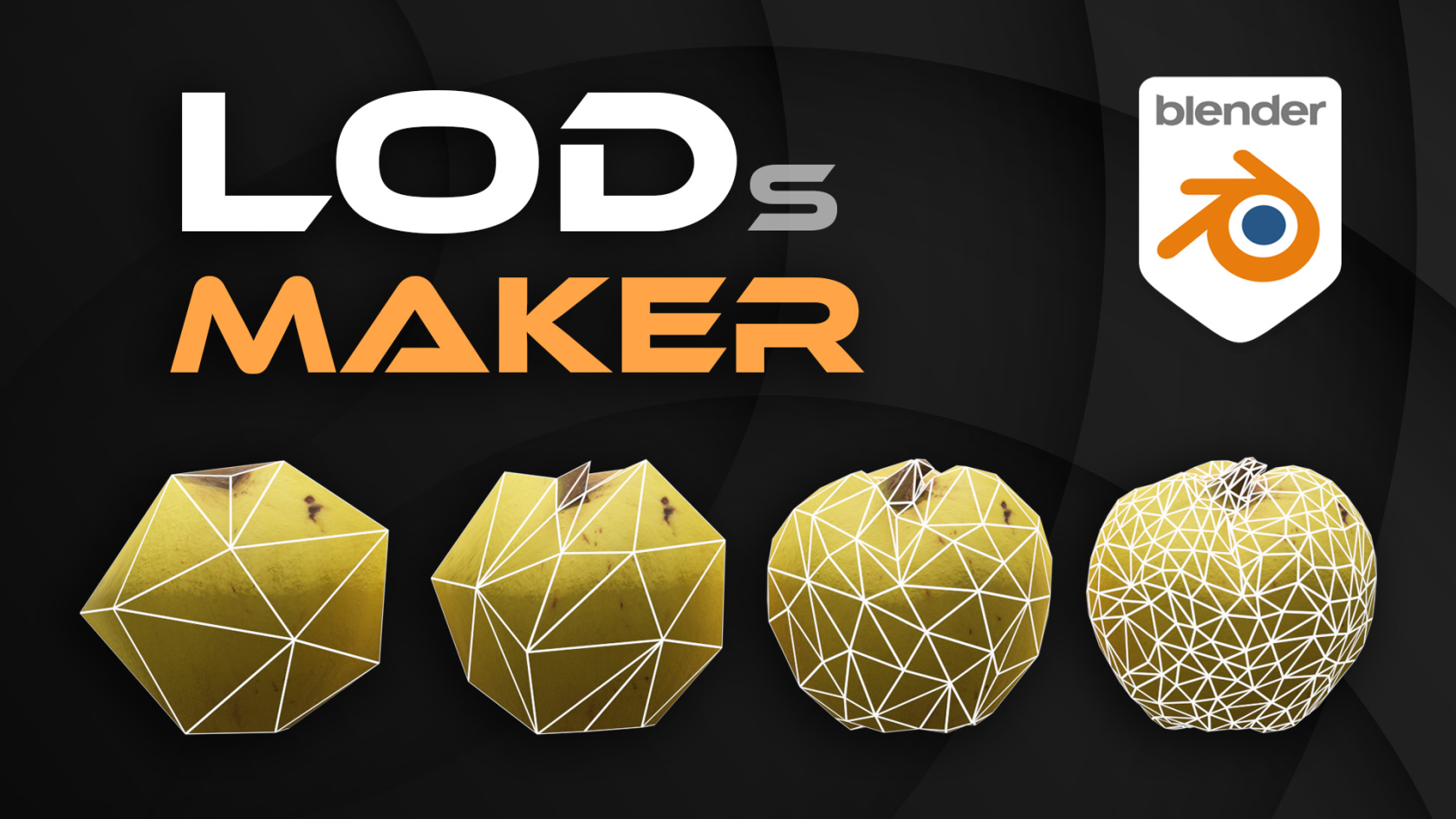](https://wiki.nabla.sh/uploads/images/gallery/2024-11/53Gimage.png)
[https://blendermarket.com/products/lods-maker--create-level-of-details-in-1-click/?ref=1193](https://blendermarket.com/products/lods-maker--create-level-of-details-in-1-click/?ref=1193)