4. Optional features available from official French Reforger Mod vehicles
This category allows you to integrate the features of French Reforger Mod vehicles if you wish.
Make a landing gear system for a helicopter
Introduction
The idea is to use the basic car trunk script from Bohemia's tutorial, modifying it to move (translate/rotate) a bone in the skeleton.
(you can download the basic car and see how the make the trunk function) you can go see the vertex part here: tutorial vertex and anim
1. skeleton and bone
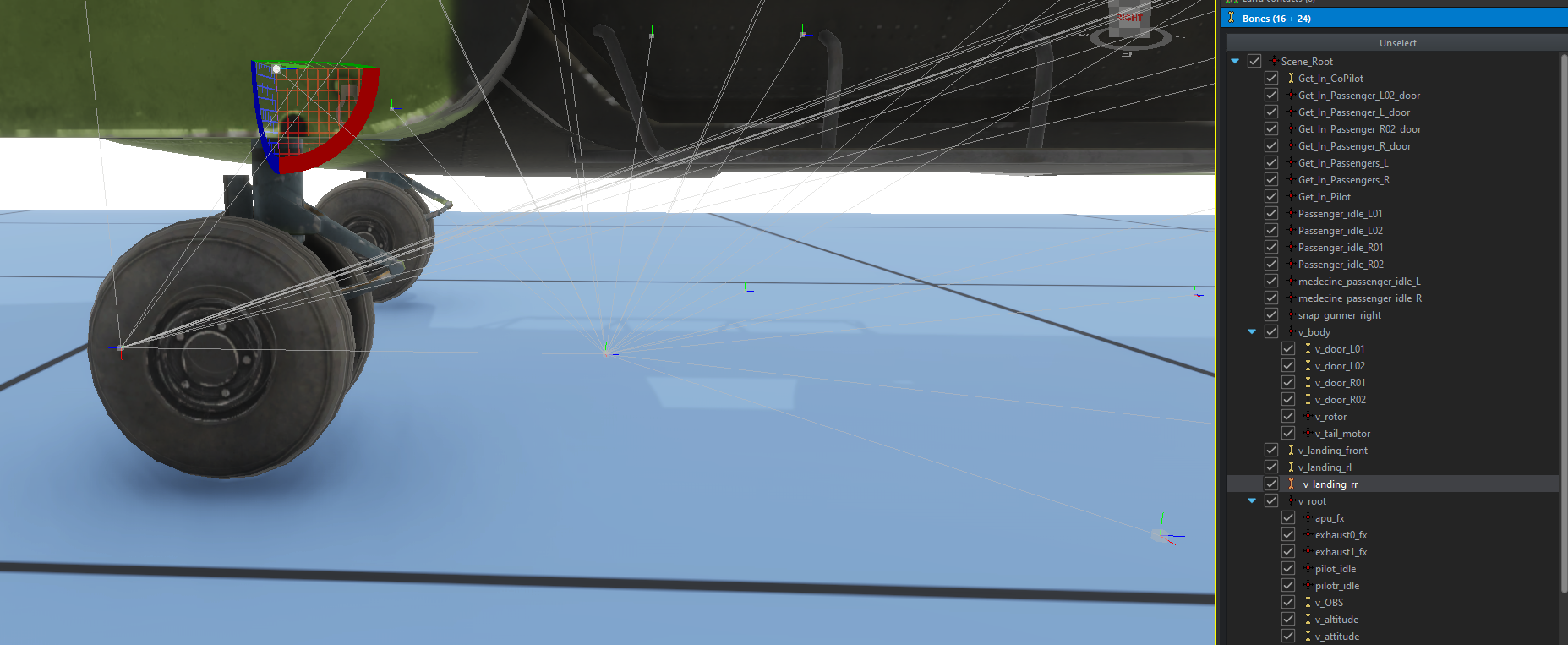
To make the animation, a bone and a vertex group must be created. In the tutorial, the bone that will make the wheel move will be called “v_landing_rr” (you can of course name it anything you like).
2. Procedural animation files
You can find these two files attached at the bottom of this tutorial, you have the right to use them freely (you can credit us if you wish 👍).
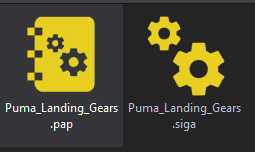
You can place them in “{YOUR_ADDON}/anims”.
Reminder: Explanations of how procedural animations work:
1. the .siga file
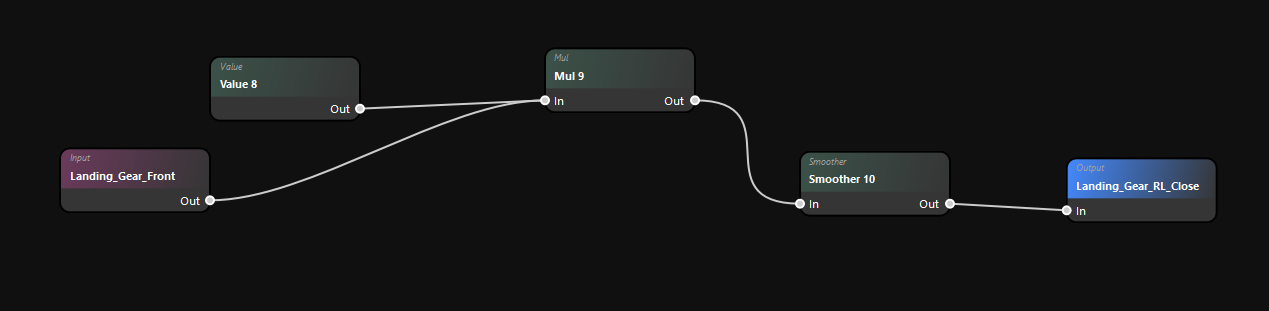
- The imput is the signal launcher for the animation ⚡
- Value 8 corresponds to the maximum rotation of the animation in practice (-80°).
- Smoother 10 softens animation to prevent it from being too rough
2. the .pap file
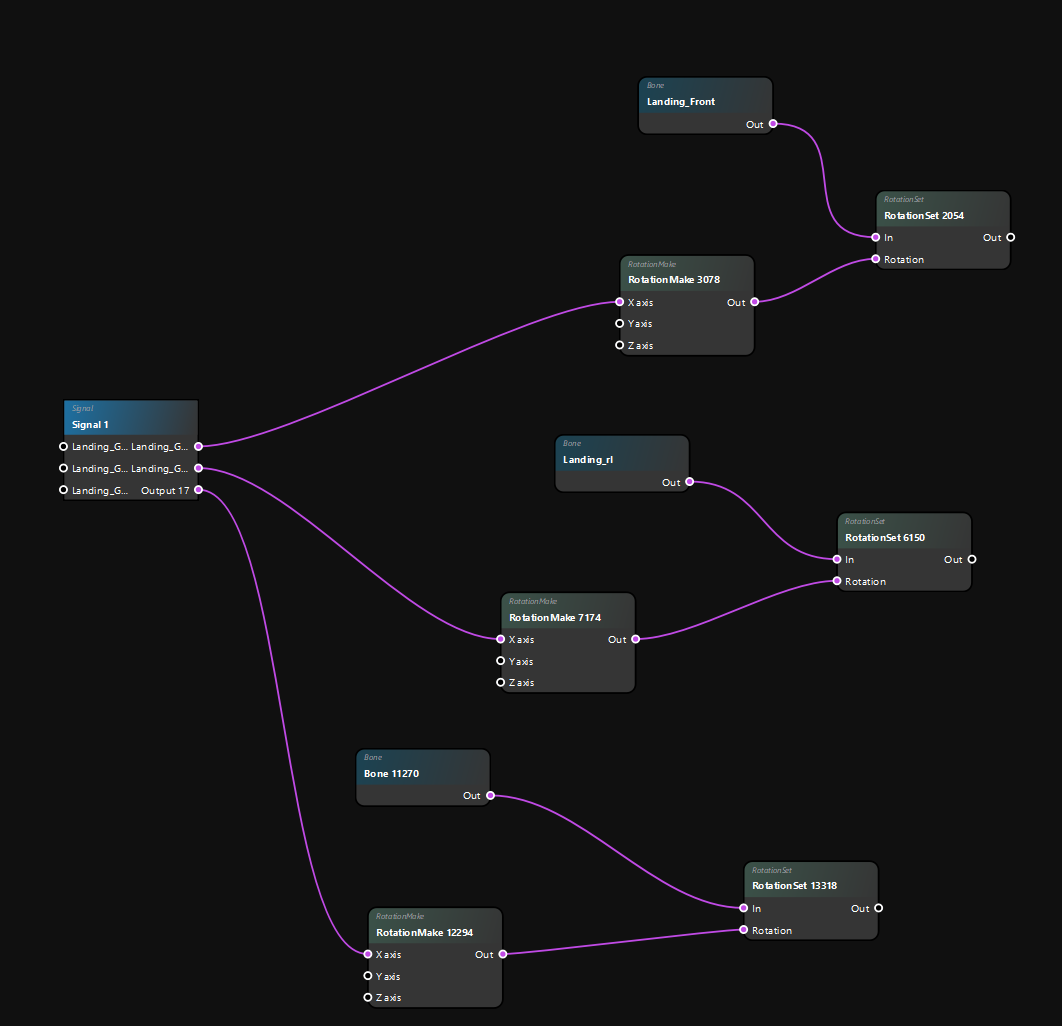
- Signal 1: Used to link .siga and .pap files, with ports for linking to animation instructions.
- Rotation Make: tells you to perform the rotation
- RotationSet: Allows you to configure rotation (in particular to define whether or not to update colliders).
- Bone: Defines which bone will move
Tips: By clicking in the background, you can define an example model, and with the “signal simulation” window, you can test your animation live.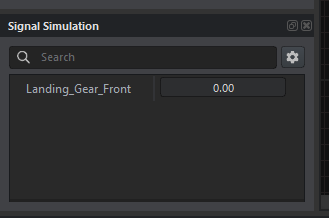
3. Les actions pour pouvoir déclencher l'animation
1. Create action "Landing_Gears"
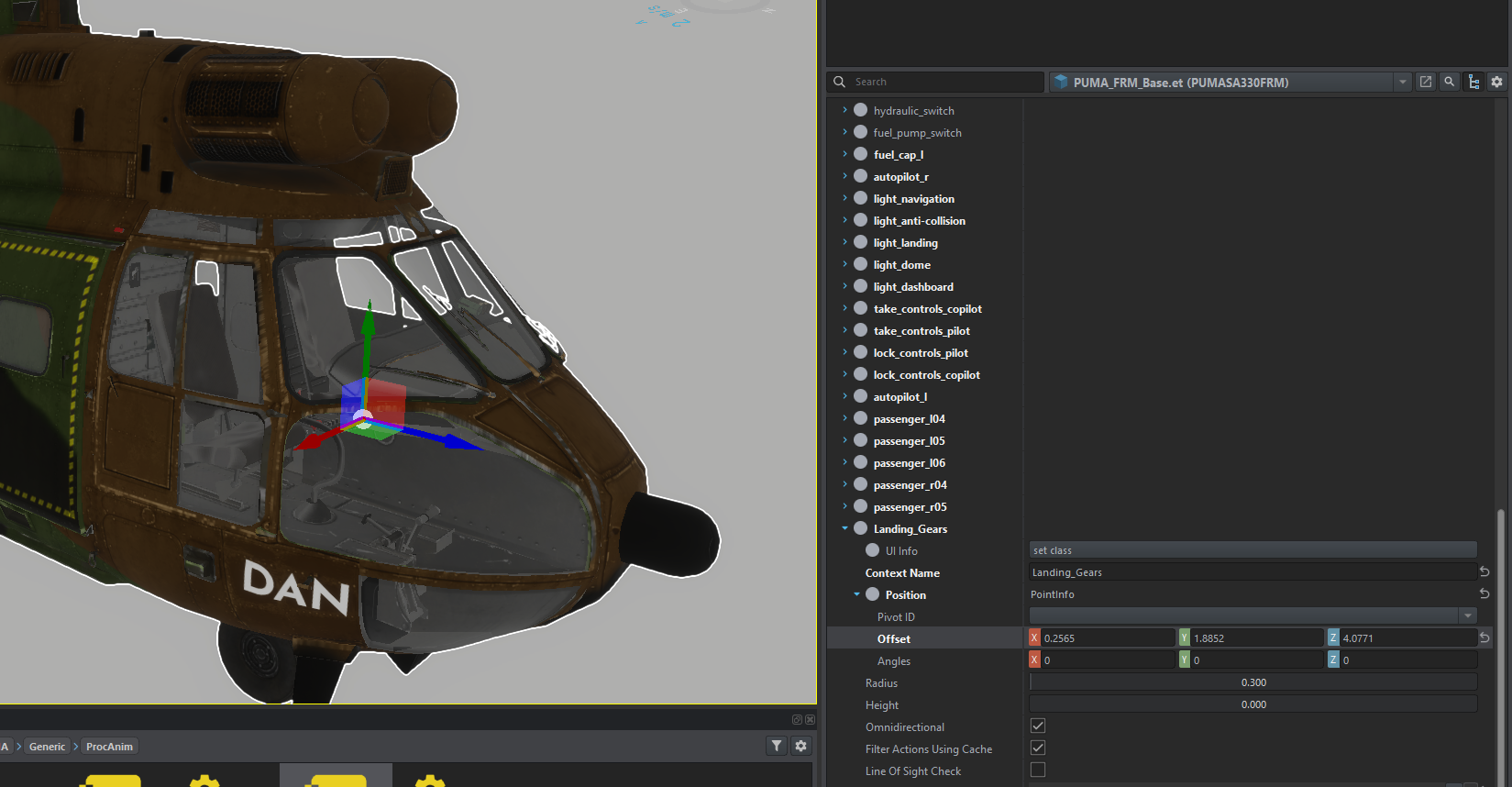
1. Create Additional Action
Add the “SCR_TrunkUserAction” additional action with the small + in the “Additional Actions” category to the ActionManagerComponent.

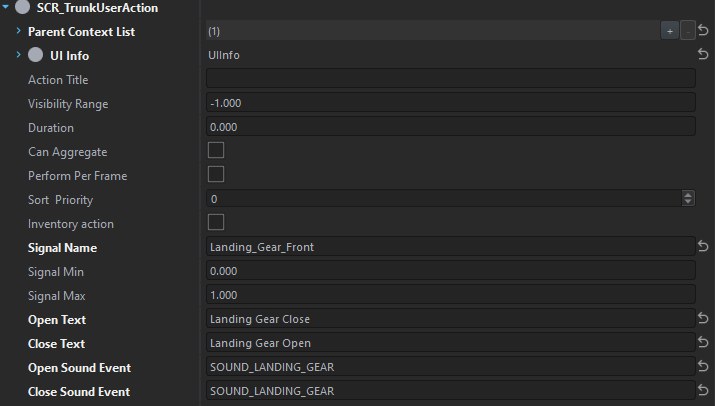
Once created, all you have to do is put these parameters into action:
- In “Parent Context List”, set the action you created above
- Signal Name will be the name you have defined in the signal file (.siga).
4. Script
Reminder: For the script to be taken into account, it must be located in at least one “scripts/Game/UserActions” folder.
Create a script file in this directory called “SCR_CarTrunkUserAction.c”, open it and put this in it:
//French Reforger Mod - Landing Gears tutorial

class SCR_TrunkUserAction : ScriptedUserAction
{
	[Attribute(defvalue: "Drawer 1", uiwidget: UIWidgets.EditBox, desc: "Signal name of trunk action in procedural animation project")]
	protected string m_sSignalName;	//for pairing with the user action

	[Attribute(defvalue: "0", uiwidget: UIWidgets.EditBox, desc: "Value of signal when trunk is closed")]
	protected float m_fSignalMin;

	[Attribute(defvalue: "1", uiwidget: UIWidgets.EditBox, desc: "Value of signal when trunk is opened")]
	protected float m_fSignalMax;

	[Attribute(defvalue: "Open", uiwidget: UIWidgets.EditBox, desc: "Text for the 'Open' action")]
	protected string m_sOpenText;  // Texte pour l'action "Open"

	[Attribute(defvalue: "Close", uiwidget: UIWidgets.EditBox, desc: "Text for the 'Close' action")]
	protected string m_sCloseText;  // Texte pour l'action "Close"

	[Attribute(defvalue: "SOUND_CONTAINER_OPEN", uiwidget: UIWidgets.EditBox, desc: "Sound event name when opening")]
	protected string m_sOpenSoundEvent;  // Événement sonore pour l'ouverture

	[Attribute(defvalue: "SOUND_CONTAINER_CLOSE", uiwidget: UIWidgets.EditBox, desc: "Sound event name when closing")]
	protected string m_sCloseSoundEvent;  // Événement sonore pour la fermeture

	protected int m_iSignalIndex = -1;

	//! Signal manager to pass signals into proc anim
	private SignalsManagerComponent m_SignalsManager;
	//! Sound component
	private SCR_VehicleSoundComponent m_SoundComponent;

	//------------------------------------------------------------------------------------------------
	override bool CanBeShownScript(IEntity user)
	{
		return CanBePerformedScript(user);
	}

	//------------------------------------------------------------------------------------------------
	override bool CanBePerformedScript(IEntity user)
	{
		if(!m_SignalsManager)
			return false;

		if (m_iSignalIndex < 0)
		{
			m_iSignalIndex = m_SignalsManager.FindSignal(m_sSignalName);
			return false;
		}

		return true;
	}

	//---------------------------------------------------------
	override void PerformAction(IEntity pOwnerEntity, IEntity pUserEntity)
	{
		float targetValue = Math.AbsFloat((m_SignalsManager.GetSignalValue(m_iSignalIndex)) - m_fSignalMax);
		m_SignalsManager.SetSignalValue(m_iSignalIndex, targetValue);

		// Play sound
		if (m_SoundComponent)
		{
			if(targetValue > 0)
			{
				m_SoundComponent.SoundEvent(m_sOpenSoundEvent);  // Utilise l'événement sonore défini pour l'ouverture
			}
			else
			{
				m_SoundComponent.SoundEvent(m_sCloseSoundEvent);  // Utilise l'événement sonore défini pour la fermeture
			}
		}
	}

	//------------------------------------------------------------------------------------------------
	override bool GetActionNameScript(out string outName)
	{
		if((m_SignalsManager.GetSignalValue(m_iSignalIndex)) == 0)
		{
			outName = m_sOpenText;  // Utilise le texte défini pour l'ouverture
		} else
		{
			outName = m_sCloseText;  // Utilise le texte défini pour la fermeture
		}
		return true;
	}

	//------------------------------------------------------------------------------------------------
	override void Init(IEntity pOwnerEntity, GenericComponent pManagerComponent)
	{
		m_SignalsManager = SignalsManagerComponent.Cast(pOwnerEntity.FindComponent(SignalsManagerComponent));
		m_SoundComponent = SCR_VehicleSoundComponent.Cast(pOwnerEntity.FindComponent(SCR_VehicleSoundComponent));
	}
}
Once you've done this tutorial, you can restart the workbench and if you've done everything right, the wheels should move. Now it's up to you to make sure they do ^^.
5. Setup the custom sound of the animation
First you will have to create the audio file of your futur sound to be called use the one provide in this tutorial landinggear.acp
put the file in a sound folder and open it
- change the sound that need to be played you will need to have a .wav file and import it in the Workbench
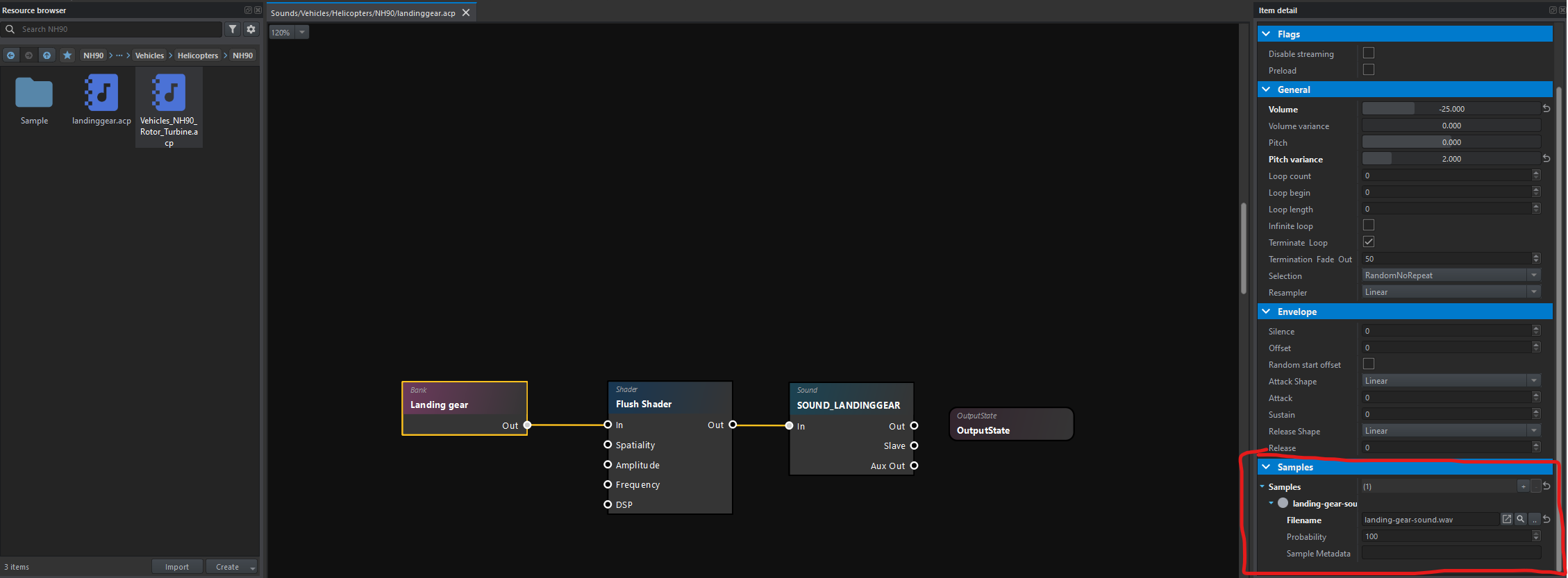
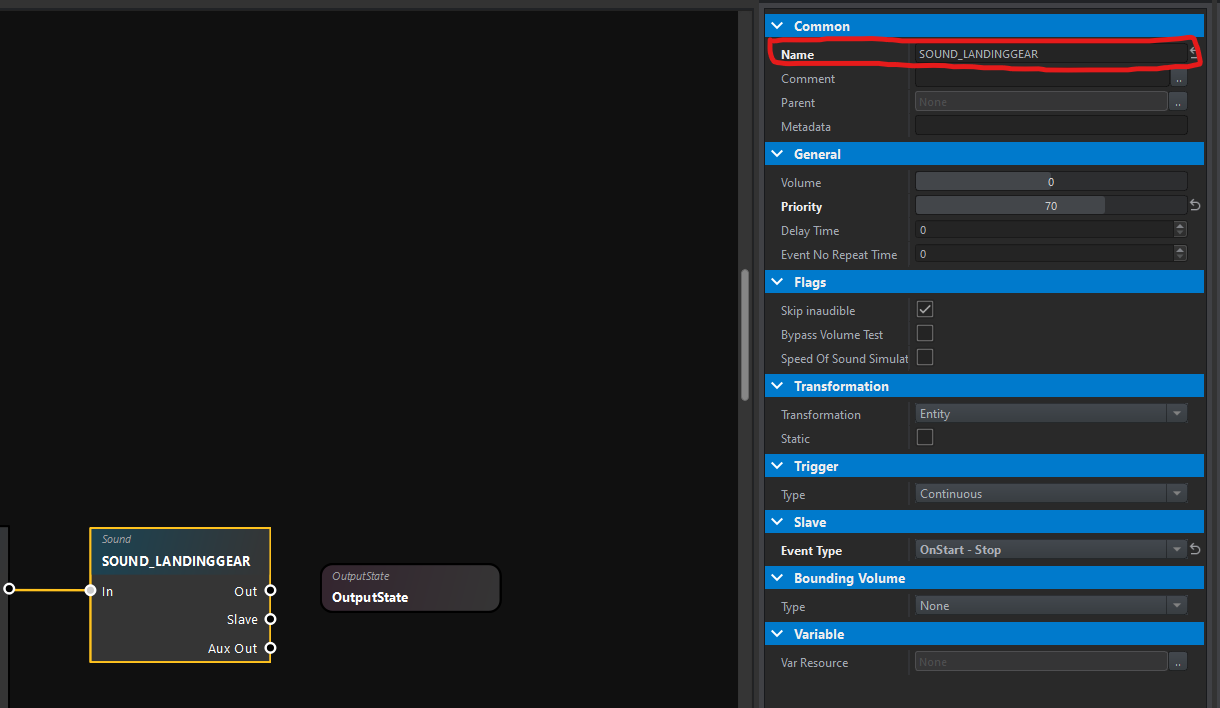
Change the name of the event sound name
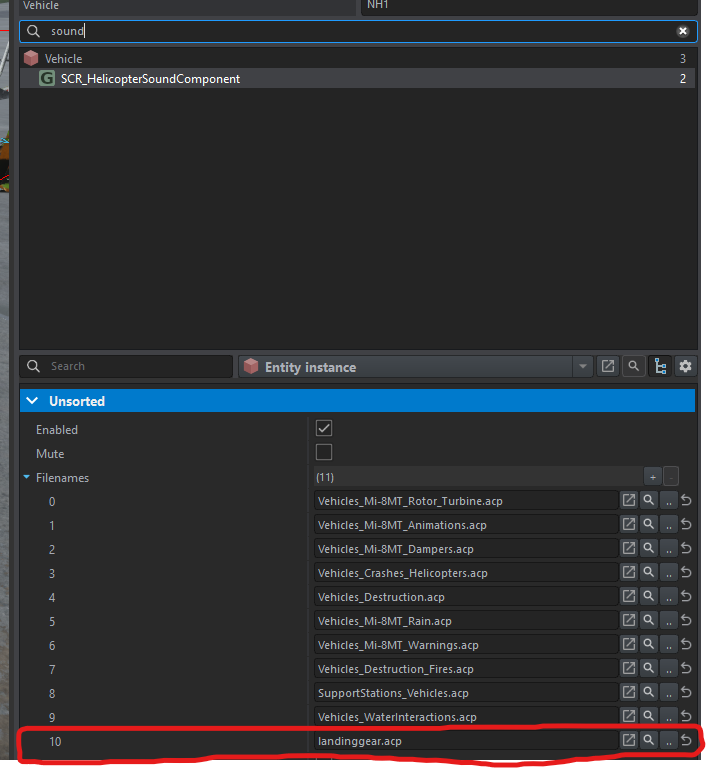
- add the file to the vehicle
It's important to add the sound file to the sound component of your vehicule !
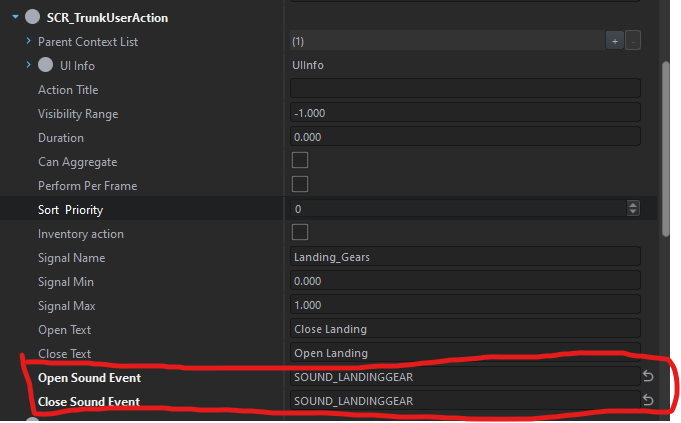
- add the name of you sound event in the component Trunkaction