Attention: Don't do your cinematic in your main addon /!\\. This could create conflicts and it will add useless weight for players.
[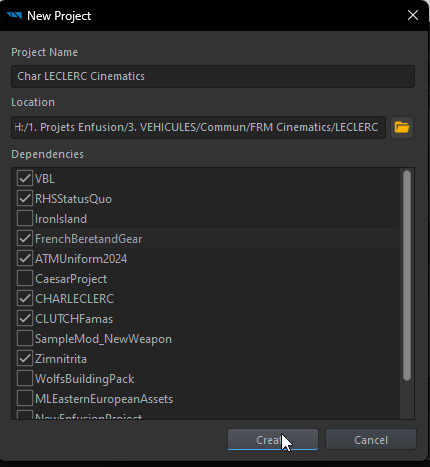](https://wiki.nabla.sh/uploads/images/gallery/2024-12/scaled-1680-/8RJimage.png) With a cinematic addon, you can add dependencies without worrying too much about your mod being buggy, used only once or a few times.Attention: Don't publish to workshop a Cinematic addon, it's useless.
### ****2. Create a sub-scene of your world**** [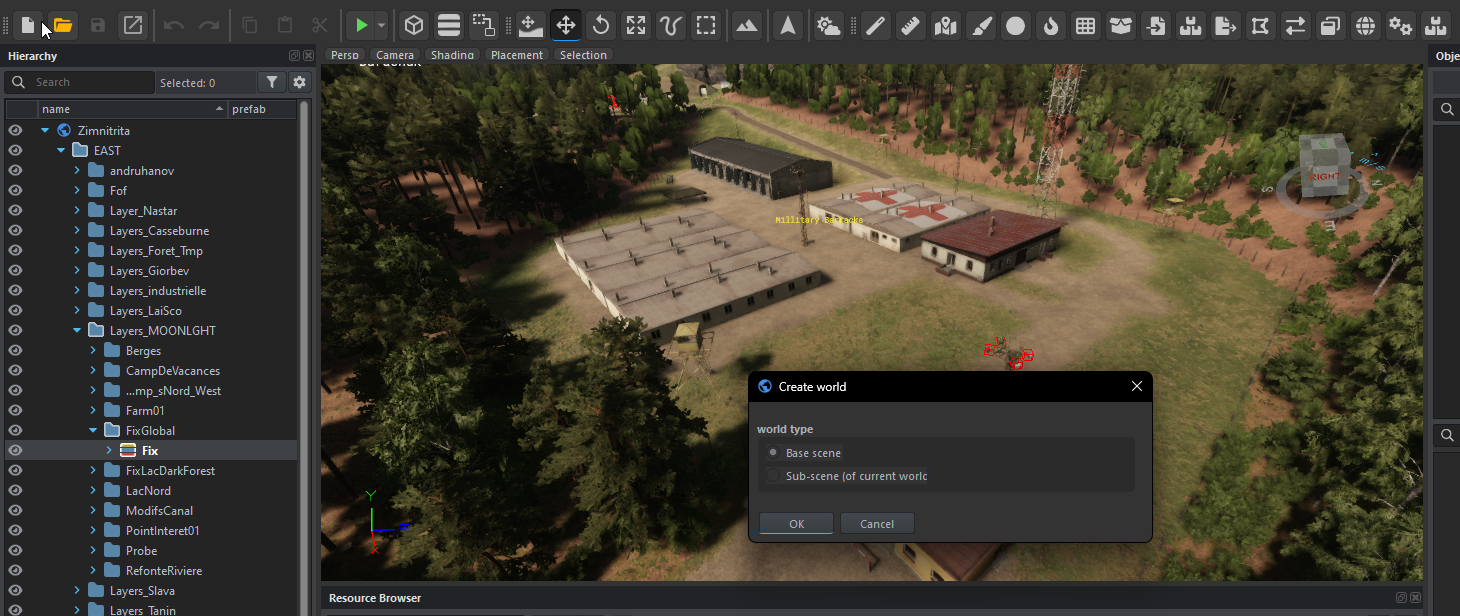](https://wiki.nabla.sh/uploads/images/gallery/2024-12/WSSimage.png) Create a sub-scene of your cinematic world and save it in your Cinematic addon. ### ****3. Create a 1st Scene**** [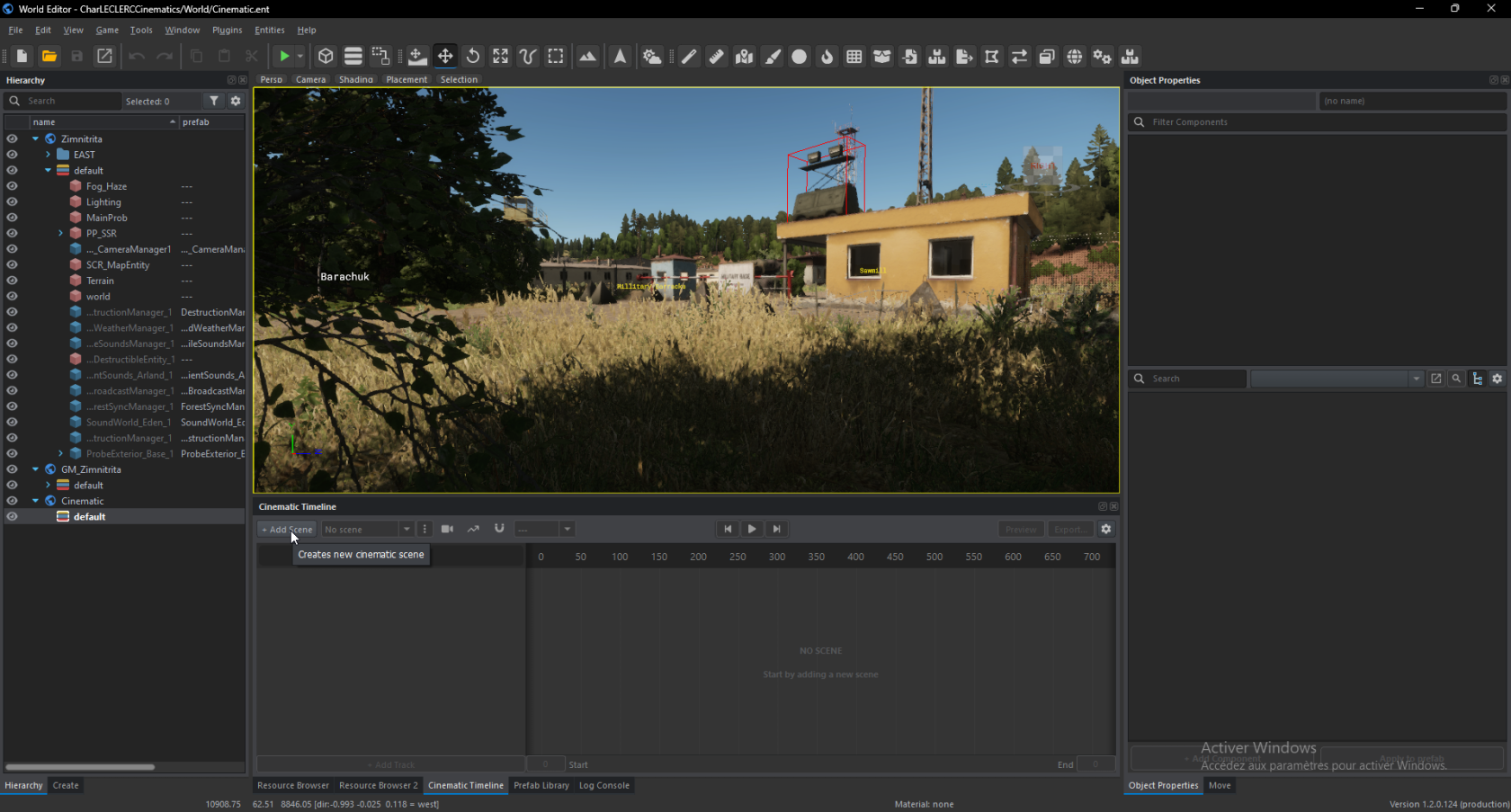](https://wiki.nabla.sh/uploads/images/gallery/2024-12/jxqimage.png) Pour ce faire, allez dans Cinematic Timeline puis Add Scene et donnez lui un nomDon't forget to set 16:9 aspect in Camera/View Aspect Ratio [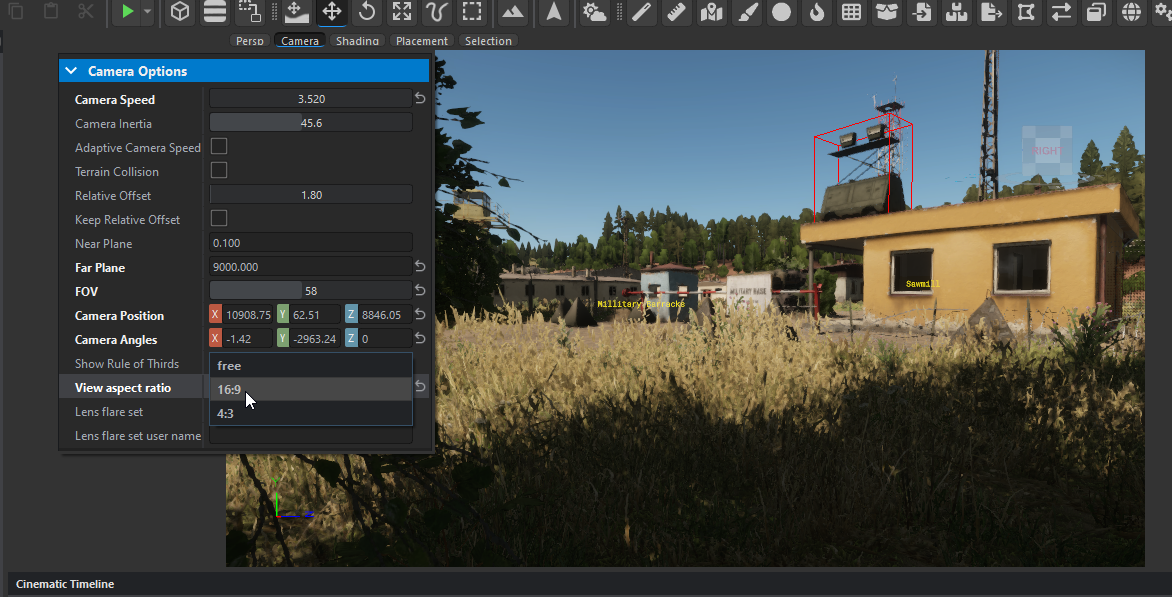](https://wiki.nabla.sh/uploads/images/gallery/2024-12/CXSimage.png)
Once that done, you can continue the tutorial 👍 ### 2. Paramétrer l'environnement de votre scène