# Import and modification in Enfusion Tool

****a - Import****  
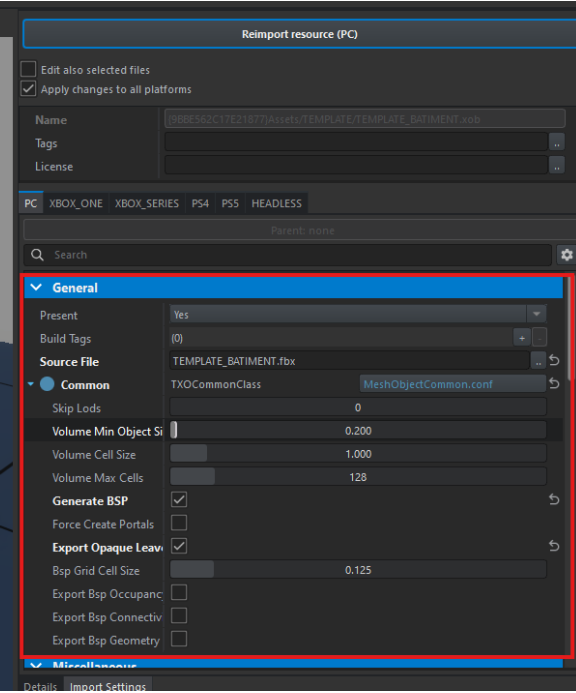
Once imported, select the XOB file and modify the following properties:

- <span style="white-space: pre-wrap;">Go to </span>****General****<span style="white-space: pre-wrap;"> → </span>****Source File****<span style="white-space: pre-wrap;"> → select your FBX file.</span>
- <span style="white-space: pre-wrap;">Check </span>****Generate BSP, Export Opaque Leave****<span style="white-space: pre-wrap;"> </span>****&amp; Export skinning****
- <span style="white-space: pre-wrap;">Click </span>****Import****<span style="white-space: pre-wrap;"> to finalize the import.</span>  
    [![image.png](https://wiki.nabla.sh/uploads/images/gallery/2024-11/scaled-1680-/KV9image.png)](https://wiki.nabla.sh/uploads/images/gallery/2024-11/KV9image.png)

****b- Modificaiont of the Emat****

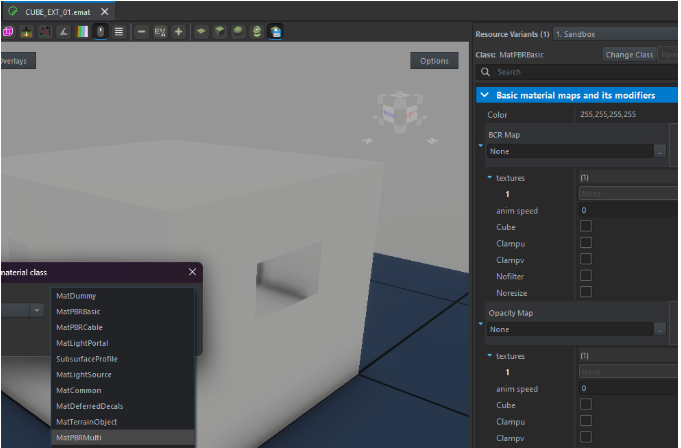
Go to the emat concerning -&gt; change class -&gt; MatPBRMulti  
[![image.png](https://wiki.nabla.sh/uploads/images/gallery/2024-11/scaled-1680-/PJhimage.png)](https://wiki.nabla.sh/uploads/images/gallery/2024-11/PJhimage.png)

****c - Import your texture masks****:

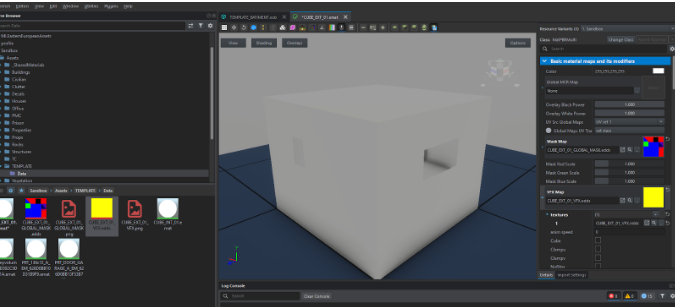
- <span style="white-space: pre-wrap;">Place the </span>****global mask****<span style="white-space: pre-wrap;"> in the </span>**Mask Map**.
- <span style="white-space: pre-wrap;">Place the </span>****VFX mask****<span style="white-space: pre-wrap;"> in the </span>**VFW Map**.

[![image.png](https://wiki.nabla.sh/uploads/images/gallery/2024-11/scaled-1680-/lotimage.png)](https://wiki.nabla.sh/uploads/images/gallery/2024-11/lotimage.png)